
How to investigate an unexpected badge removal
Assigning a badge again may restore access, but does not explain why it disappeared. An expired date, subscription or still-active integration can remove it again. Investigate the cause before repeating the correction.
You need permission to view and manage this feature on your platform.
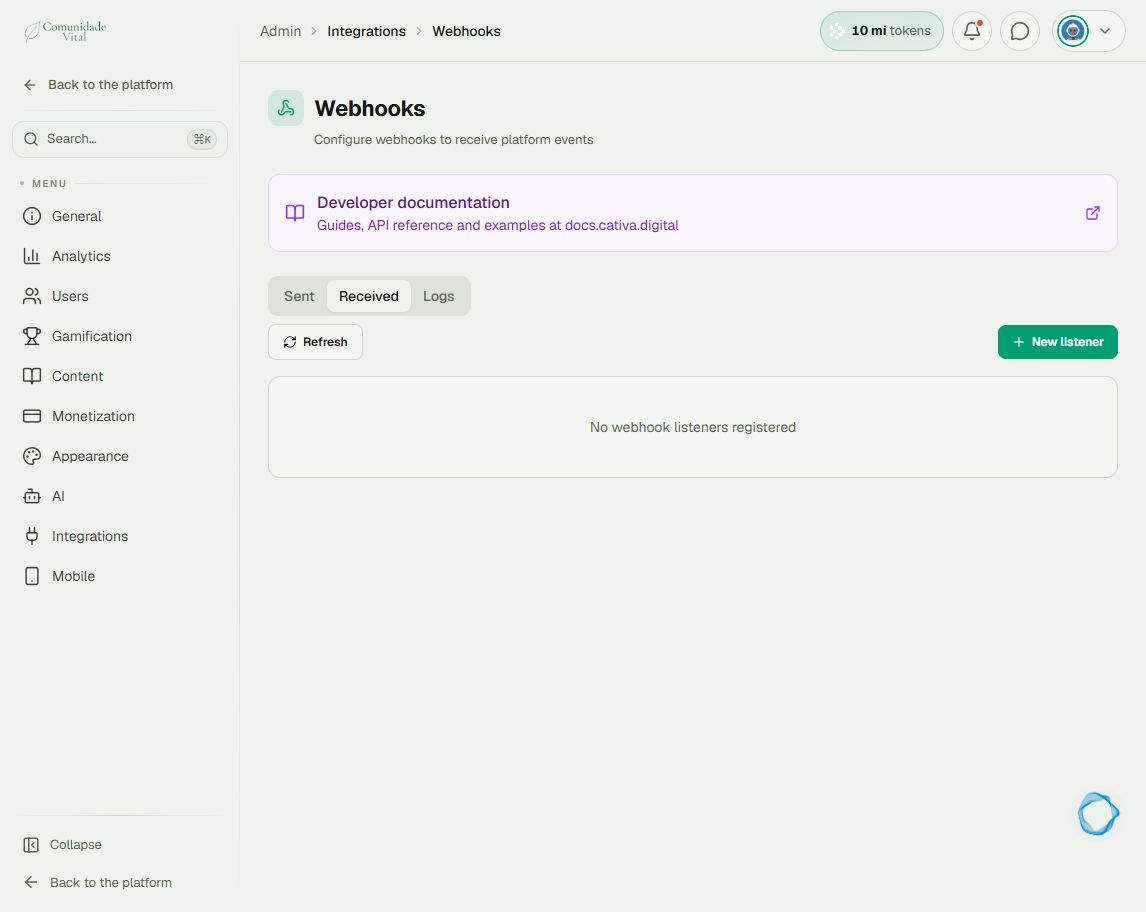
On the platform, open your profile picture and choose the administrative panel. Then follow: Integrations → Webhooks → Received.
1Match the time with the integration action
Under Received, find listeners that remove badges and inspect their logs around the incident time. Under Users → Access badges, open the badge’s history to compare the removal and period. An origin displayed as Unknown does not by itself identify a person or automation.
2Check other causes of access loss
Review badge expiration and any linked subscription. Platform maintenance can remove expired badges. Integrations migrated from the previous version are not necessarily disabled; also review external workflows still sending events.
3Correct the identified cause
If a rule should no longer remove the badge, review the automation or edit the listener and clear Ativo (active). Save and recheck criteria. If expiration is the cause, correct the member’s expiry date; pausing an automation does not stop badge expiration rules. Afterwards, check that access remains available.
Tip
Use How to investigate incoming webhook errors to interpret logs and How to change the expiration date of an assigned badge to correct an expiration date. For linked billing, see Cancel a subscription, refund or remove access - understand the difference.
Frequently asked questions
Does migration disable all previous integrations?
No. Review existing listeners and automations and any external tools still sending events.