
How to change the expiration date of an assigned badge
Think of a badge as an access pass. When a person's participation period changes, you can update that pass in their user profile.
For example, a student may need extra time to finish a program. Set a new date without removing and reassigning their badge. If access should no longer expire, choose Permanent.
The change applies to one person, not everyone with the same badge.
1Open the user's profile
- While signed in as an administrator, click your profile picture in the top-right corner.
- Open the administration panel from the account menu.
- Click Users in the sidebar.
- Find the person using the search field and click their name.
- Open the Selos tab.
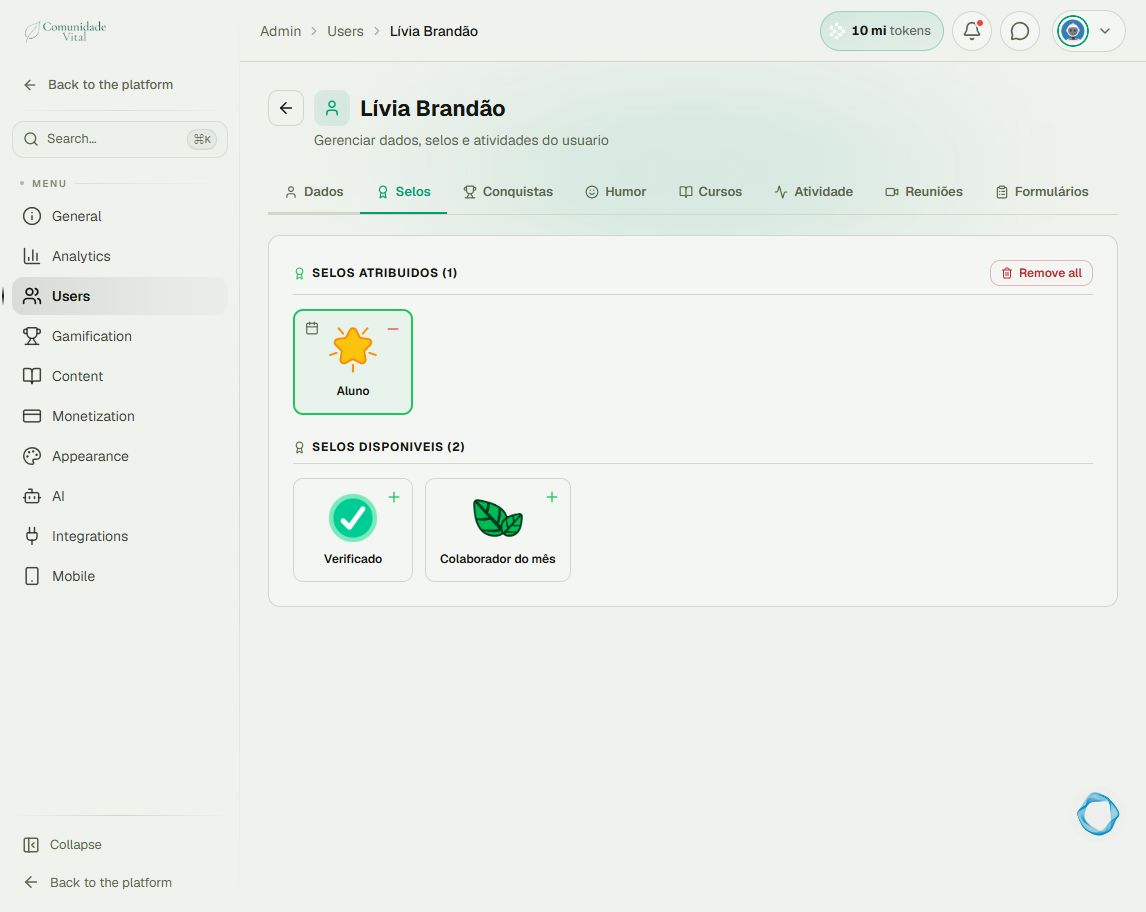
Some labels still appear in Portuguese. Selos means badges; SELOS ATRIBUIDOS identifies assigned badges. Find the badge to update in that section.
2Open Edit expiration
Click the calendar icon in the top-left corner of the badge card. This control is labeled Edit expiration.
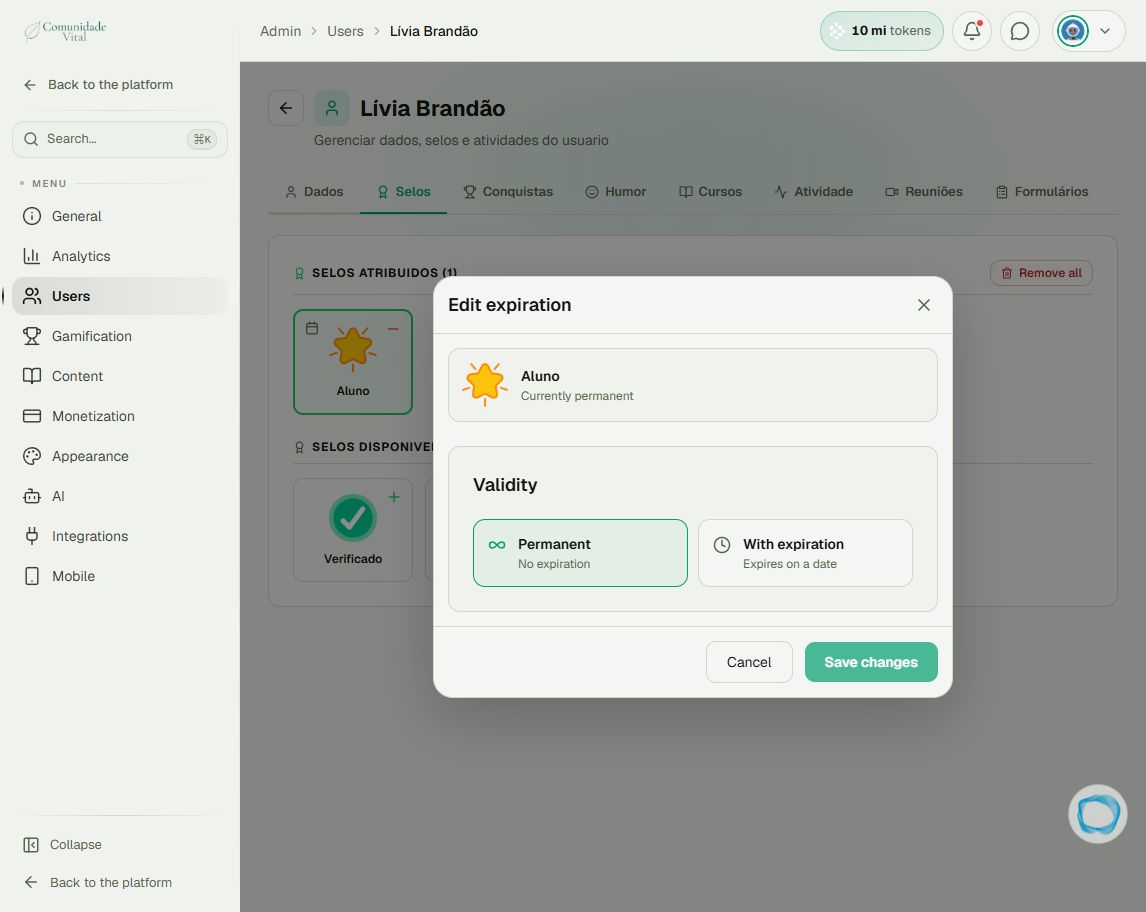
The dialog shows the badge and its current status. In this example, it says Currently permanent.
3Choose the new date
Select With expiration. Use the calendar or a shortcut: +30 days, +90 days, +6 months or +1 year.
Review the date and the Expires on summary. To extend access, make sure the new date is later than the current expiration date.
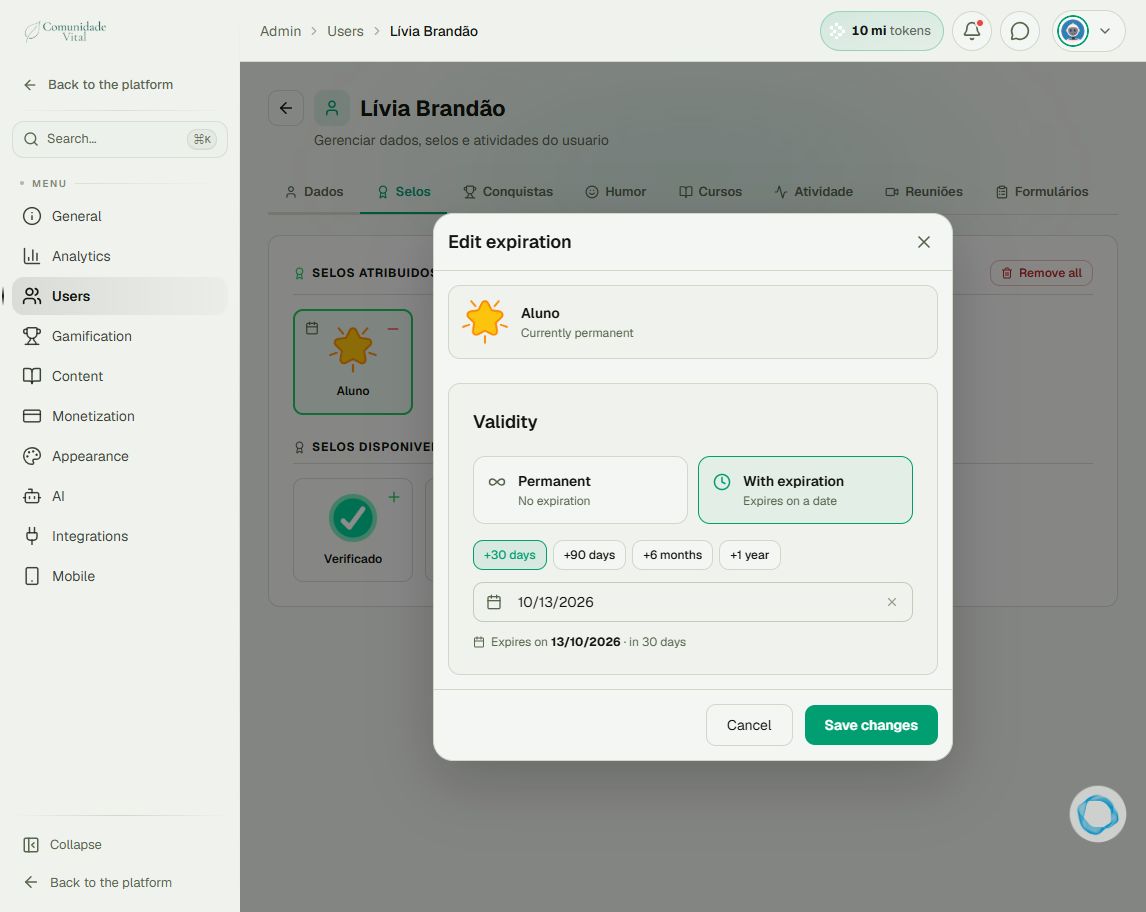
In this screen, the field uses MM/DD/YYYY, but the summary uses DD/MM/YYYY. Both 10/13/2026 and 13/10/2026 mean October 13, 2026.
4Save and check
- Review your selection and click Save changes.
- Return to the same badge in the Selos tab and reopen Edit expiration.
- Check the current date or permanent status.
To leave without saving, click Cancel.
Tip: one-time change or recurring rule?
Use an individual edit for a specific extension or correction. To update several people, see the articles on importing badges from a spreadsheet.
For recurring access grants, such as access triggered by a purchase, see the automation and integration articles. Configure expiration in the relevant workflow.
For a custom API integration, your technical team should check how the operation handles an existing badge's expiration date. See the badge API articles before applying updates in bulk.
Common questions
Do I need to remove and reassign the badge?
No. Use Edit expiration to update the existing assignment.
Can I make access permanent through a spreadsheet?
Use Permanent in this dialog to remove the expiration date. When reimporting an already assigned badge, leaving the expiration field blank keeps the previous date.
What if I shorten the access period?
You reduce the validity period of that badge. Check the new date and the content it grants access to, so access does not end earlier than agreed.
I cannot find the badge under assigned badges
Check that you opened the correct person. If they do not have the badge yet, see How to assign a badge with an expiration date.