
How to investigate incoming webhook errors
A listener’s history helps you establish whether an integration reached the platform and why an action did not run. For example, a gateway may approve a purchase while sending the buyer’s email in a different field from the one configured.
You need permission to view and manage this feature on your platform.
On the platform, open your profile picture and choose the administrative panel. Then follow: Integrations → Webhooks → Received.
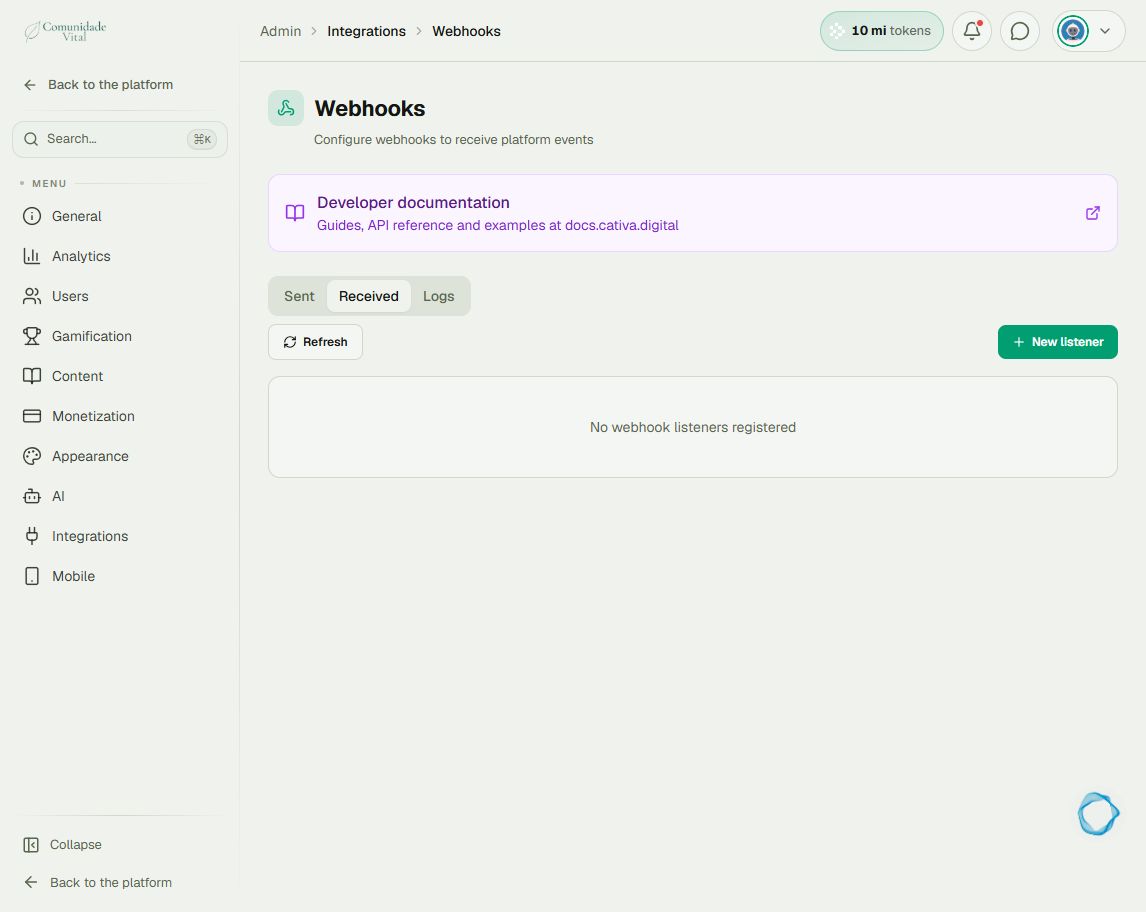
1Find the incoming event
Find the integration’s listener and open its log icon. Filter by the purchase period and refresh. The screenshot shows the entry point; each registered listener has its own history. Records are retained for 30 days.
2Read the reason before changing settings
Inactive webhook means the listener was inactive. Payload does not satisfy listener criteria means the filters did not match. Email não encontrado no payload means the email mapping needs review; Usuário não encontrado means you should check membership and the create-user option. Compare the received JSON with the action’s field mapping.
3Cross-check the evidence
If there is no entry, check the period, retention, gateway history and registered URL. No log alone does not prove nothing was sent. After a successful entry, check the result of that specific action: a successful message does not prove a badge was assigned. For access issues, also check the badge and its expiration.
Tip
Copy the URL using the listener’s own control. Before resending an event, read What to check before resending an integration event: some actions have cumulative effects.
Frequently asked questions
Does HTTP 200 guarantee delivery?
No. An inactive listener or an unmatched filter can return 200 without running the action. Read the log outcome.