
Cancel a subscription, refund or remove access - understand the difference
Stopping future charges, refunding a payment and removing content access are different decisions. For example, a member may cancel while keeping access for the period already paid. First decide which outcome is intended.
You need permission to view and manage this feature on your platform.
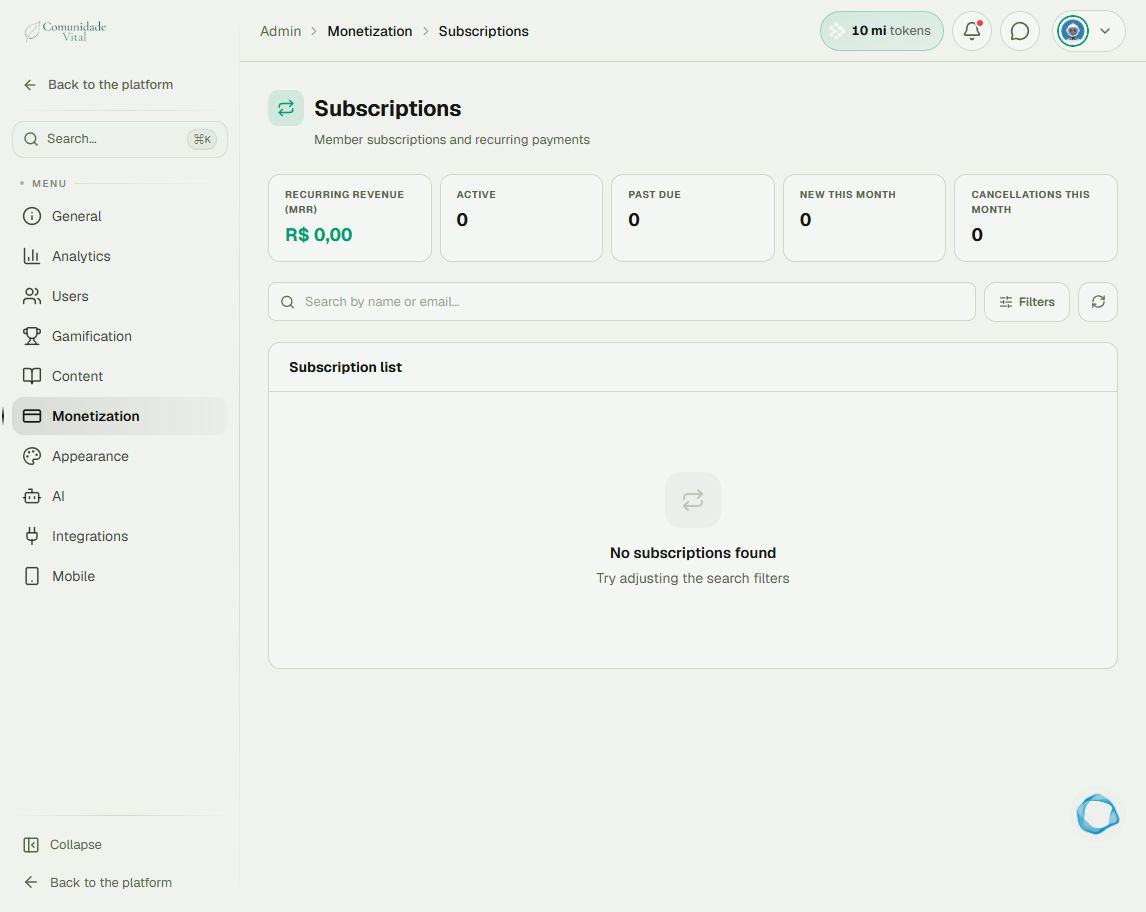
On the platform, open your profile picture and choose the administrative panel. Then follow: Monetization → Subscriptions.
1Find the subscription
Search by name or email and identify the correct subscription. Administrators perform cancellation in the interface; members should contact the platform owner. If the list is empty, review the search and filters rather than creating another charge.
2Choose when access should end
When cancelling in Cativa, the immediate-revocation option removes access at that time. Otherwise, cancellation is scheduled for the end of the paid period. Review the choice before confirming: the same command cannot undo cancellation.
3Check billing and access separately
Check the state in Cativa and confirm billing has stopped in Asaas. The platform attempts to synchronize cancellation with the gateway, but an external failure can require follow-up. Cancelling only in Asaas does not guarantee access removal in Cativa. Manually removing a badge does not itself stop billing.
Tip
A refund returns a payment; it is not the same as cancelling future billing. Refund events can revoke access; check the transaction and linked subscription. Also see How to identify purchase emails and payment reminders.
Frequently asked questions
Does removing a product always block sign-in?
Not necessarily. Platform sign-in and content access are separate controls; check the link’s removal-after-expiration setting.