
When to use native automations or keep an external tool
An automation connects an event to conditions and actions. For example, receiving a badge can trigger an orientation message. Before replacing a Make workflow, compare its steps with what the platform can execute.
You need permission to view and manage this feature on your platform.
On the platform, open your profile picture and choose the administrative panel. Then follow: Integrations → Automations → New automation.
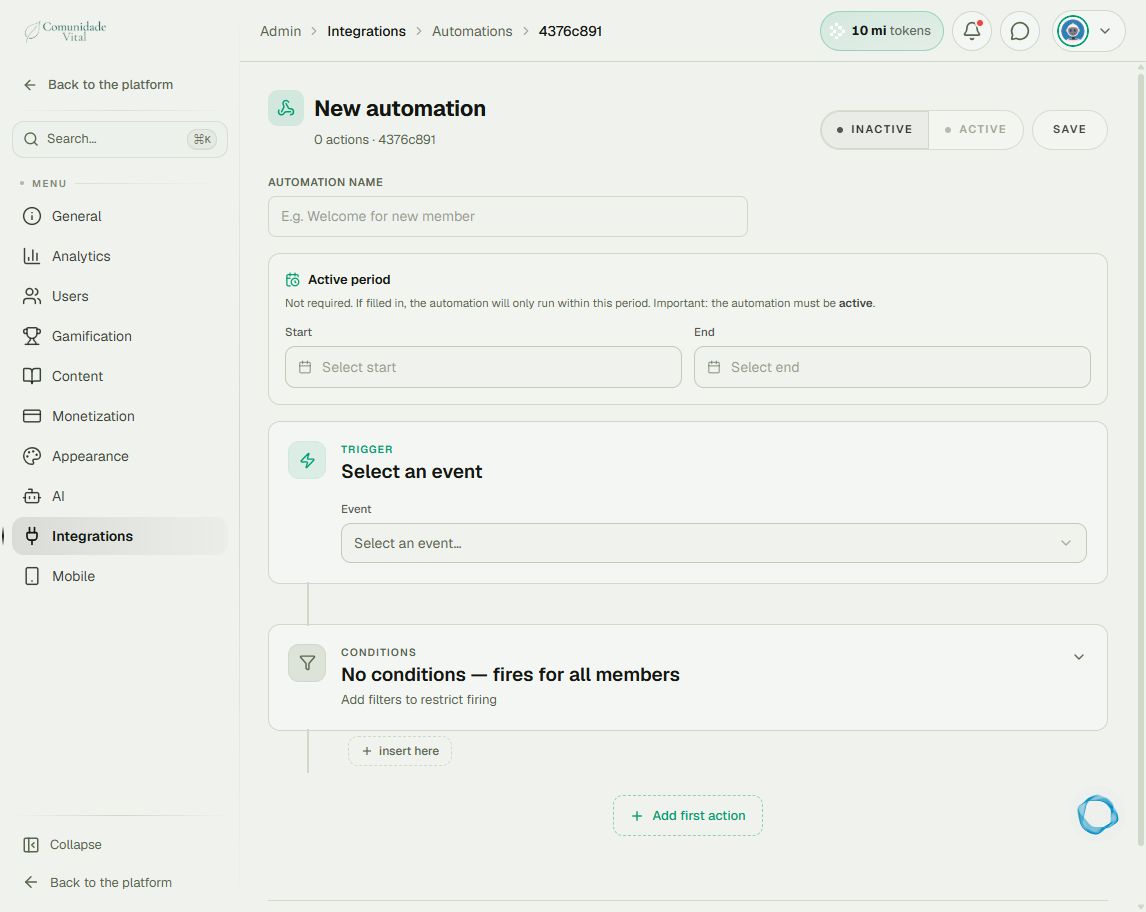
1Map the event, conditions and actions
In the editor, review the trigger, conditions and actions. Supported operations include granting/removing badges, points, private messages, push and external webhooks. Conditions restrict the audience; the automation’s active period is not a delay between actions.
2Recognize the limits
The chain does not provide delays between steps, if/else branches, native email sending, external API lookups or general field transformations. These cases may require an external tool. A scheduled trigger with a time-based condition can cover some scenarios, but is not equivalent to a delayed sequence.
3Plan the switch without duplicate execution
Configure and review the new flow before switching the event source. Decide when to disable the old flow and how to roll back. If Make and native processing receive the same event, points and messages can duplicate and badge expiration can change. Verify one known execution before expanding.
Tip
With recurring schedules, the same audience can be processed again. Plan a control condition to prevent repetition and read What to check before resending an integration event.
Frequently asked questions
Is meeting attendance a trigger available in the panel?
Not in the panel’s automation catalog. Event registration does not prove attendance. To reward attendees, verify attendance and use manual assignment or a dedicated integration.