
How to import users from a spreadsheet
Importing creates multiple accounts from a spreadsheet. Use it when you already have a list of students for a program, for example.
This procedure focuses on creating accounts. To invite people or assign badges to existing users, use the corresponding workflow.
1Open the import form
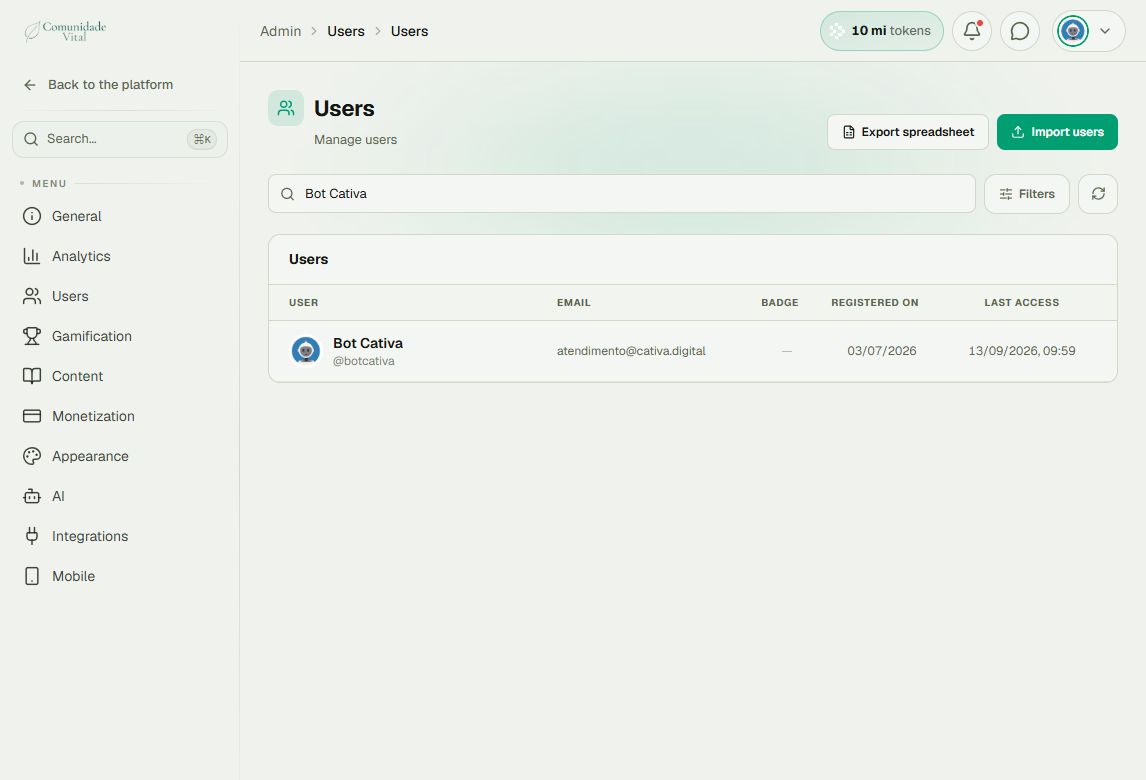
Click your profile picture in the top-right corner and choose Admin panel. In the sidebar, click Search..., search for Users, and open the result in the Users category. Click Import users.
2Download and complete the template
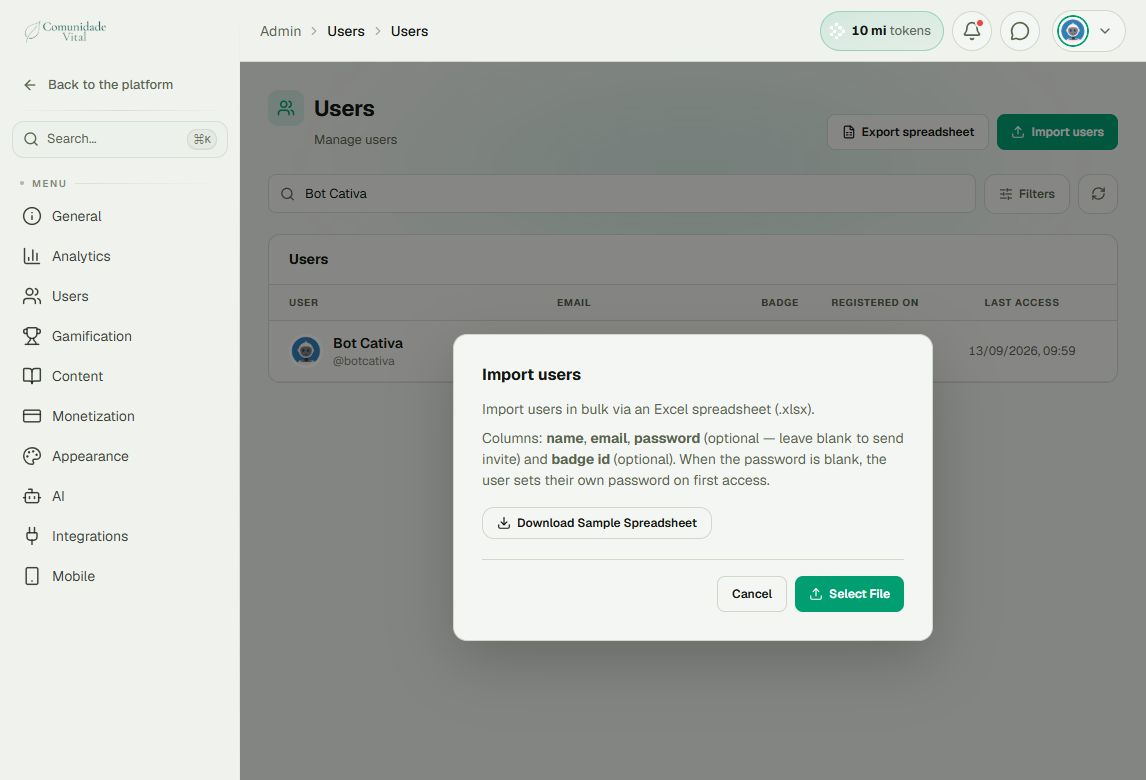
Click Download Sample Spreadsheet.
Use the template supplied by the form and preserve its headers and column order. Enter names and email addresses. Passwords are optional: as the form explains, leaving one blank lets the person set their own password on first access.
For this initial account creation, you can leave optional badge and expiration fields empty and manage access afterward on the badge page. Do not translate or add headers to the template.
Save the file as an Excel .xlsx workbook. Renaming a CSV extension does not convert it into an Excel file.
3Select the file and follow progress
Click Select File.
Review the spreadsheet before uploading it. After selecting the file, follow the progress bar at the top of the panel until processing finishes. Check successes and failures and open the report when available.
Search for a few imported email addresses in the user list to confirm the accounts. If your file also assigns badges, check them in each person's record: creating an account does not by itself prove that all access has been configured.
Tip: separate account creation from access assignment
If your program has an end date, you can create the accounts first and assign a time-limited badge through the interface. Read the articles about assigning badges and changing expiration dates.
Frequently asked questions
What happens to email addresses already registered?
The import does not create another account for the same email on the platform. Check the report for rows identified as already registered.
Is this the same as importing invitations?
No. Importing users creates accounts; importing invitations lets people complete their own registration.
Can I upload another file while the first is processing?
Wait for the current operation to finish. The platform processes one bulk operation at a time.
Will all emails arrive at once?
Not necessarily. Delivery may be queued. Check the import results before uploading the file again because a message has not arrived yet.