
How to configure a payment link with access
A payment link combines a charge with the access delivered after confirmation. Both price and delivery need to be configured.
For example, selling a class can mean granting the badge that unlocks its course. Creating the buyer’s account alone does not grant that badge. This procedure uses native checkout with Asaas.
Click your profile picture in the top-right corner and open Admin panel. Use Search... in the sidebar to find the last item in this path: Monetization › Payment links.
1Check the gateway and create the link
Before selling, check the account and its statuses under Monetization › Gateway (Asaas). In Payment links, click New Link. Enter Name, Custom link, and the offer description. Choose the payment mode and configure price, discount, and installments for your offer.
2Define what the purchase delivers
Under Action after purchase, select Add badge and choose the correct badge. Set Months of access. Read Remove user after expiration carefully: it concerns entry to the platform as well as the offer duration. Enable it only if this is your intended access policy.
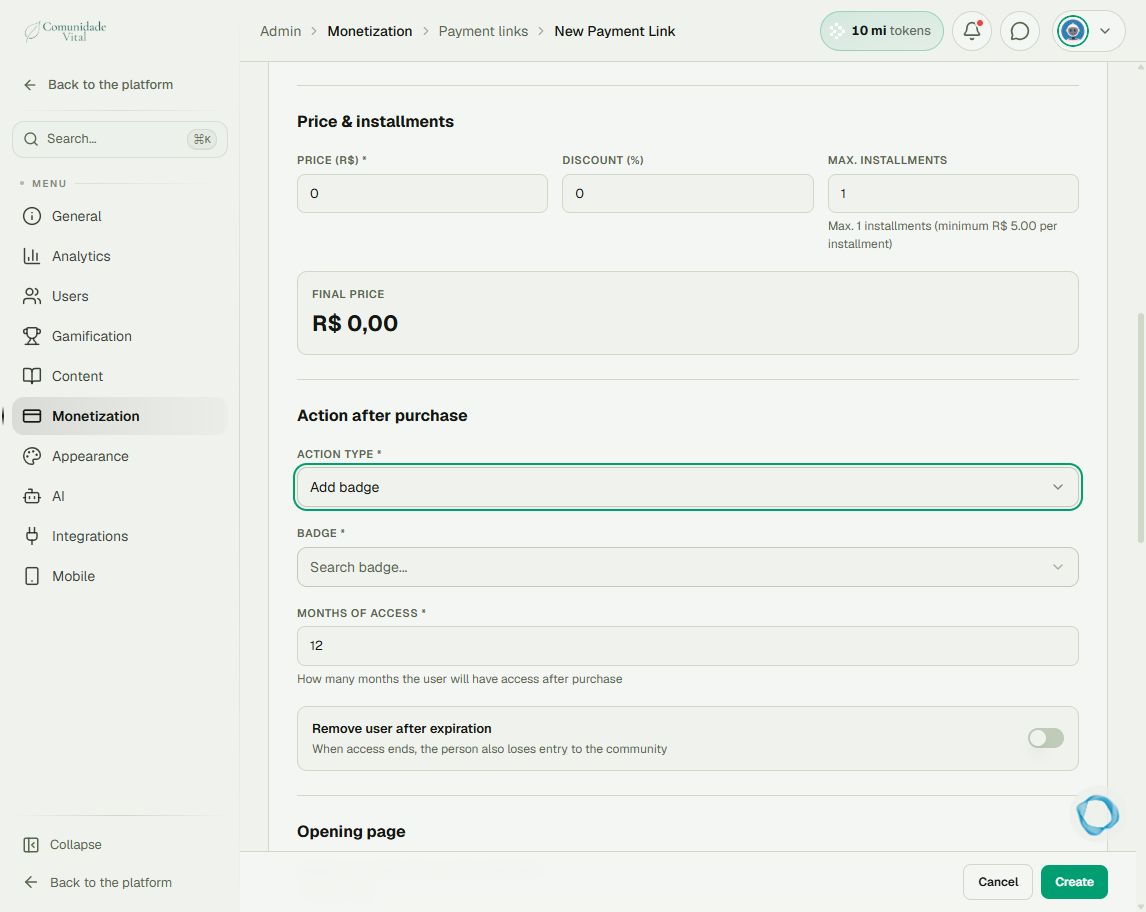
3Review destination, payment methods, and status
Choose the Opening page and available Payment methods. Pix requires approved Asaas documentation; recurring subscriptions require enabled and verified card tokenization. Review notifications and extra fields. Check Active status, then click Create. The destination picker may retain Portuguese labels, such as Cursos (courses).
4Check the experience before sharing
Open the checkout URL and check its text, amount, and destination. Verify that the content requires the same badge selected in the link. Delivery depends on confirmed payment; creating a link does not prove a purchase or badge assignment.
Tip
If payment happens outside Cativa, read the received-webhooks article. For additional post-purchase actions, read Automations.
Frequently asked questions
Does Only create user unlock my course?
Not by itself. Choose the appropriate delivery: badge, course, or group, according to the content’s access rule.
Recurring subscriptions are blocked.
Read the displayed message and check tokenization status in the gateway. Do not substitute a payment mode that does not match the sale.