
What to check before resending an integration event
Resending a purchase event can recover a failed delivery, but it can also repeat an action. The platform does not automatically deduplicate incoming events. Before using your gateway’s resend feature, identify every action that will receive the event.
You need permission to view and manage this feature on your platform.
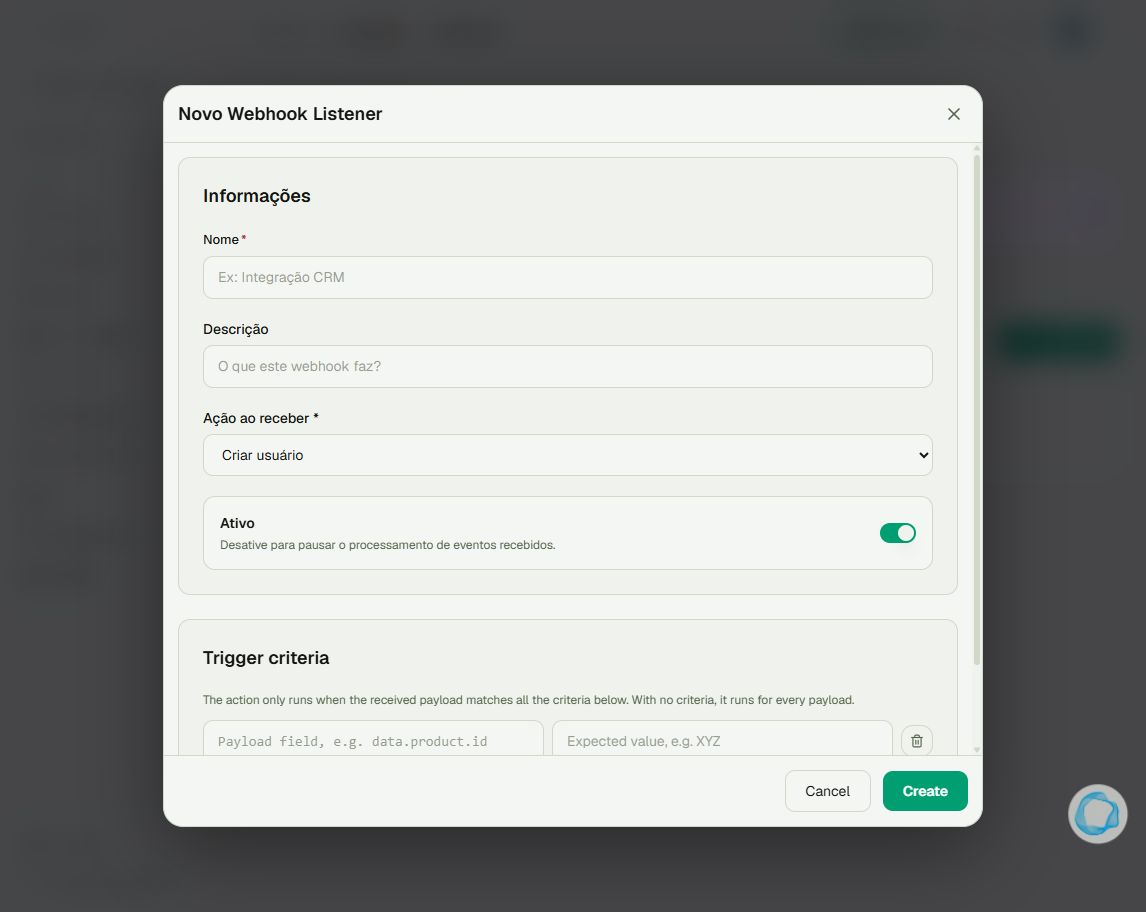
On the platform, open your profile picture and choose the administrative panel. Then follow: Integrations → Webhooks → Received → edit the listener.
1Identify the action
Check Ação ao receber (action on receipt), which retains its Portuguese label in this form. Creating an existing user does not create a second account; removing a badge does not create another association. Points, private messages and push notifications can be applied again on every receipt.
2Check badge expiration
Adding the badge again does not duplicate it, but can replace its expiration when an expiration setting is configured. Do not assume the duration is added to the previous date or that an old purchase keeps its original expiry. To preserve a date, verify its format and the resulting expiration before bulk resends.
3Resend in a controlled way
Confirm in the gateway which event, content and destination will be resent. Start with one known case and check the log, balance, messages and expiry. For mapped expiration dates, use compatible date text such as 2026-12-31; do not use a numeric timestamp without conversion. Do not apply a universal 31-day rule to monthly plans.
Tip
To find the original failure, see How to investigate incoming webhook errors. To correct a single expiration date, consider How to change the expiration date of an assigned badge.
Frequently asked questions
Can I pause it from the list?
Prefer editing the listener, clearing Ativo (active) and saving. When enabling it again, check every filter before receiving more events.