
The store is missing for a member - what to check
A store can be visible to an administrator but hidden from a member. For example, a badge-restricted store is unavailable to someone without the required access or with an expired badge.
You need permission to view and manage this feature on your platform.
On the platform, open your profile picture and choose the administrative panel. Then follow: Gamification → Stores → Edit → Identity → Access.
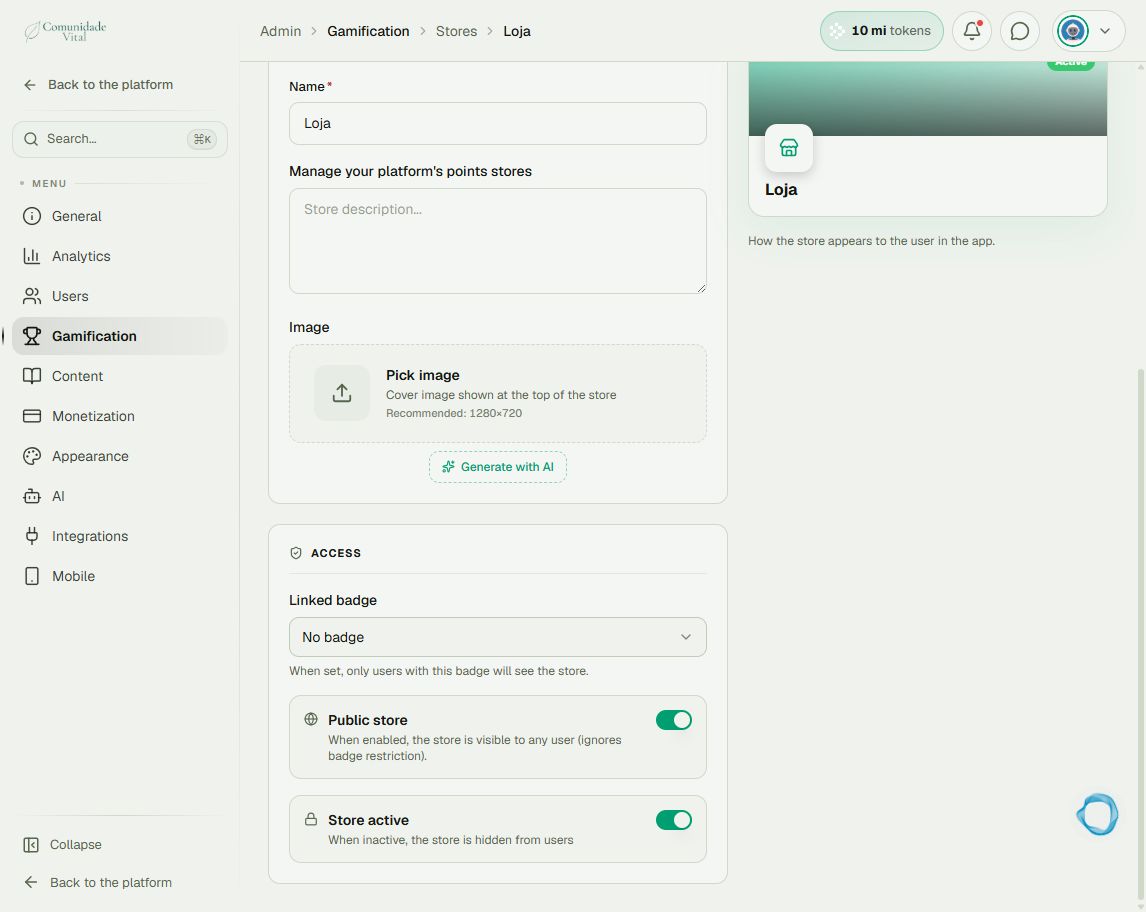
1Check store access
Check Store active, Public store and Linked badge. A public store ignores the badge restriction. For a restricted store, check that the member holds the required badge and that it is valid. An administrator’s view does not prove member visibility.
2Separate the shortcut from the content
The avatar’s Store shortcut depends on the Store feature being enabled under General → Features and on a store being visible to the member. A custom menu item is another entry point. Check its destination under Appearance → Menus; a shortcut does not bypass store restrictions.
3Check items and the member view
In Items, check that the item is active. Zero stock shows sold out; insufficient points shows insufficient balance, but should not hide an active item. Reload after changes and check with an ordinary member account. If the issue persists, collect the member and store identifiers and badge expiration dates.
Tip
To review audience-based menus, see How to check menus for users with multiple badges. To configure items, see How to set up a rewards store.
Frequently asked questions
Does having no points hide the store?
Insufficient points prevents purchasing an item, but is separate from store visibility rules.