
How to check menus for users with multiple badges
Menu badges define who can see a shortcut. Someone in two cohorts can see items allowed by badges from both. The highlighted badge is not the only badge considered by menus in 2.0.
You need permission to view and manage this feature on your platform.
On the platform, open your profile picture and choose the administrative panel. Then follow: Appearance → Menus → menu position → item.
1Open the item in the correct position
Choose the side menu, top menu or mobile position and click the listed item to edit. Menu superior (top menu) is for desktop; Menu lateral (side menu) also serves the mobile Mais area. Check where the member expects to find the shortcut. These editor labels remain Portuguese.
2Review role and badges
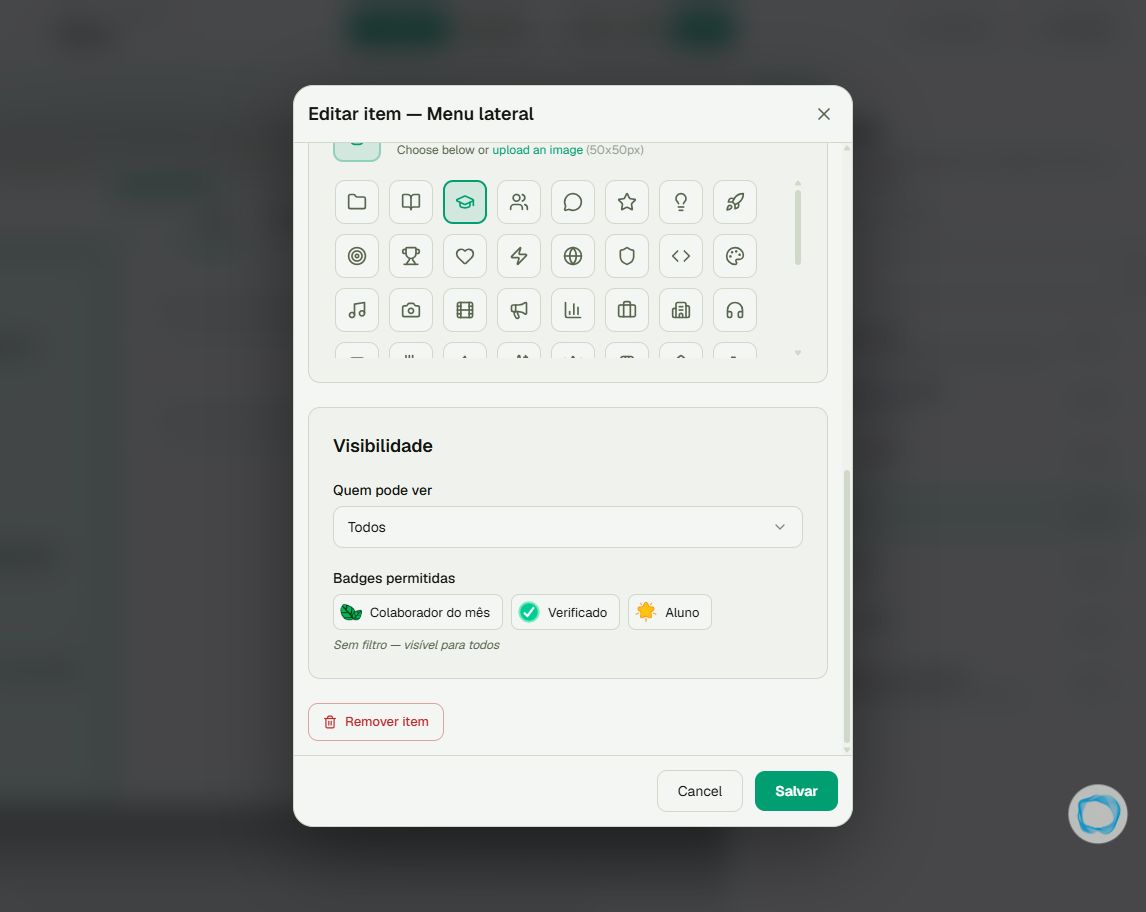
Under Visibilidade (visibility), check Quem pode ver (who can see) and Badges permitidas (allowed badges). No selected badges means no badge filter. When badges are selected, one matching user badge is enough; the role filter still applies. This does not change permissions on the destination content.
3Save and check the experience
When changing a label or destination, review the badges before clicking Salvar (save). Interface editing preserves the loaded list; reordering also retains badges. Afterwards, check the menu with the intended audience and verify destination access.
Tip
Calls to action and advertisements have their own rules; do not apply menu rules to every surface. Also see How to configure menus and who can see them.
Frequently asked questions
Does the API preserve restrictions in the same way?
Do not assume so. An API update without the allowed-badge list can clear restrictions. This article describes the interface workflow.