
How to choose where buyers go after payment
The opening page guides buyers after confirmation. A course can lead directly to lessons, while a program can open a showcase with getting-started guidance. This destination is separate from the access permission granted by the purchase.
You need permission to view and manage this feature on your platform.
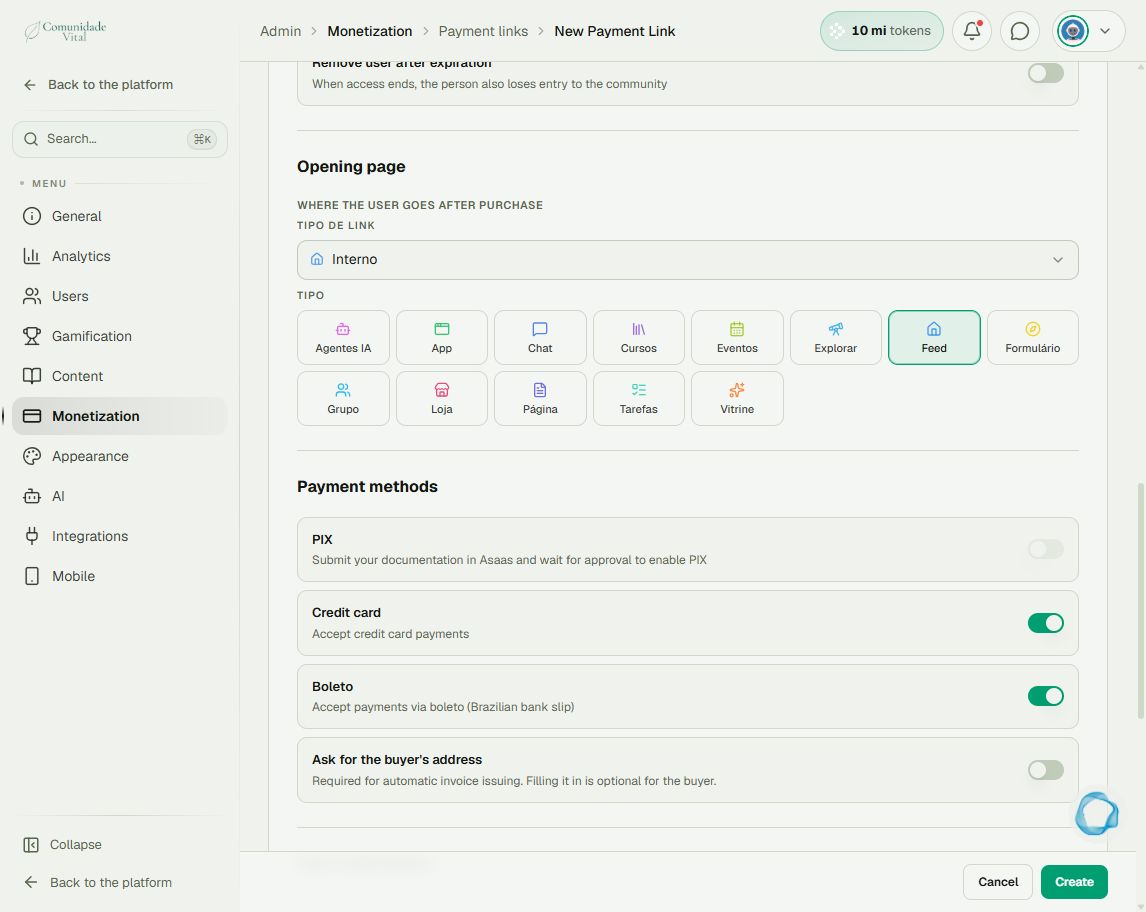
On the platform, open your profile picture and choose the administrative panel. Then follow: Monetization → Payment links → new or edit link → Opening page.
1Choose the link destination
In Opening page, choose the link type and content. For a page on the same platform, use the corresponding internal selection. Labels such as Interno (internal), Cursos (courses), Grupo (group), Loja (store), Tarefas (tasks) and Vitrine (showcase) remain Portuguese. Also check the purchase action: linking to a course does not itself enroll the buyer.
2Consider the buyer’s session
An internal destination can use the buyer’s session or access link. An external destination does not automatically receive that authentication: another platform may ask for sign-in. Without an opening page, the destination may be the associated course or home page, depending on the link and session.
3Check the path after confirmation
Save and check an authorized purchase: method, delivery and access button. For Pix or boleto, the destination appears after confirmation arrives while the page is open. If the buyer closed the page, direct them to the purchase email, whose access link lasts 7 days.
Tip
If the buyer reaches the page but cannot see the content, investigate access delivery with The customer paid but did not receive access.
Frequently asked questions
Does an external link keep buyers signed in on another site?
Not automatically. Cativa access does not replace another service’s authentication.