
Which payment methods the native checkout supports
Native checkout brings payment and access delivery together in the platform. Before promoting an offer, check which methods are enabled on the link and which depend on your Asaas account status.
You need permission to view and manage this feature on your platform.
On the platform, open your profile picture and choose the administrative panel. Then follow: Monetization → Payment links → New Link → Payment methods.
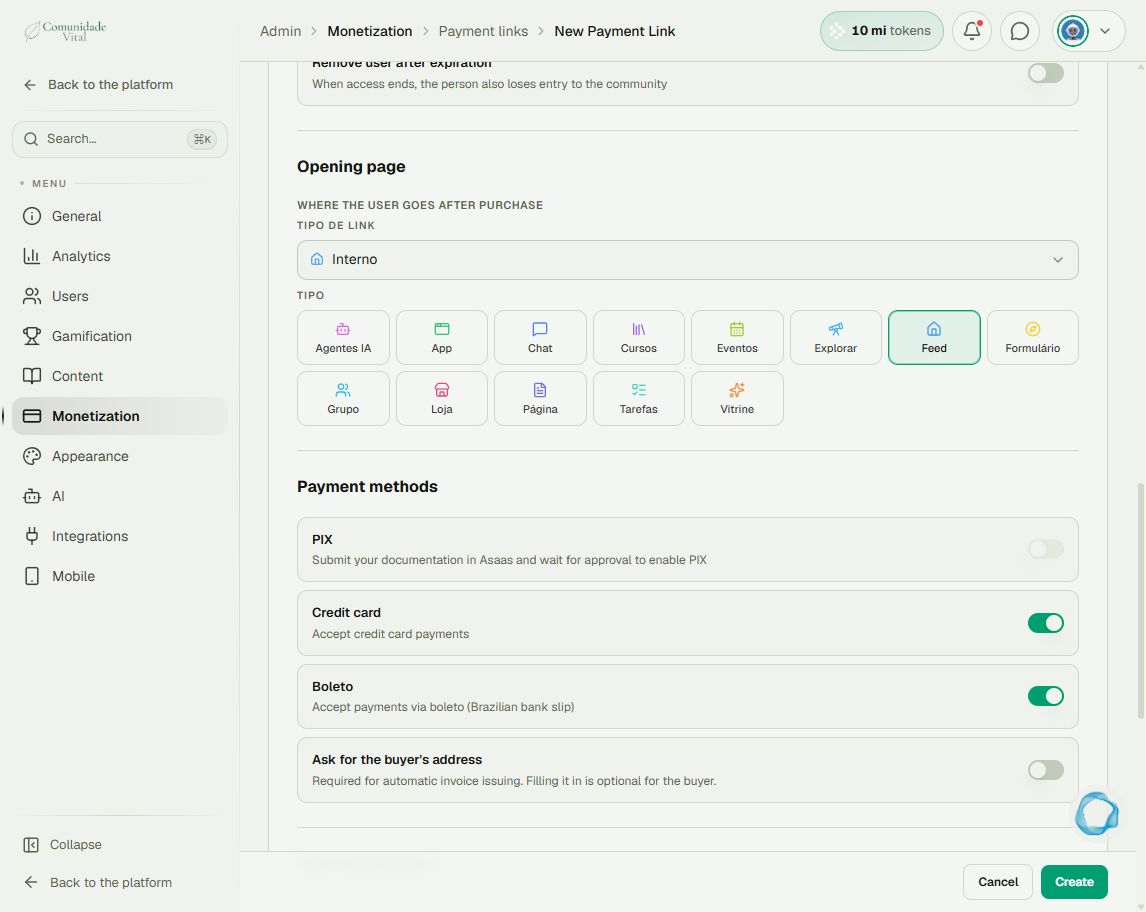
1Check the link’s payment methods
Scroll to Payment methods. Native options are Pix, credit card and boleto (Brazilian bank slip). A method may be unavailable depending on the gateway account; the screenshot shows Pix awaiting approval. Read the message beside the control before advising buyers.
2Distinguish different features
Installments on a purchase and recurring subscriptions are different payment arrangements. A percentage discount is not an order bump. Native checkout 2.0 does not offer Apple Pay, Google Pay or order bumps; switching browser or device does not add them.
3Review before sharing
Review methods, price, access action and opening page; save the link and open checkout to check the displayed choices. If you need another method, evaluate an external checkout with its provider and plan access integration separately.
Tip
For blocked recurring payments, read Recurring subscriptions blocked by tokenization - what to check. To configure delivery, see How to configure a payment link with access.
Frequently asked questions
Where do I configure fraud screening?
Cativa has no setting for this. Ask the Asaas account owner about risk analysis; changing a Cativa payment link does not enable a fraud-screening setting.