
How to connect Google Tag Manager and understand its coverage
Google Tag Manager groups measurement tags in a container. Connecting it to the platform lets you prepare tracking of visits and native-checkout stages. It does not configure every tag automatically or prove that your analytics service received every conversion.
You need permission to view and manage this feature on your platform.
On the platform, open your profile picture and choose the administrative panel. Then follow: Integrations → Google Tag Manager.
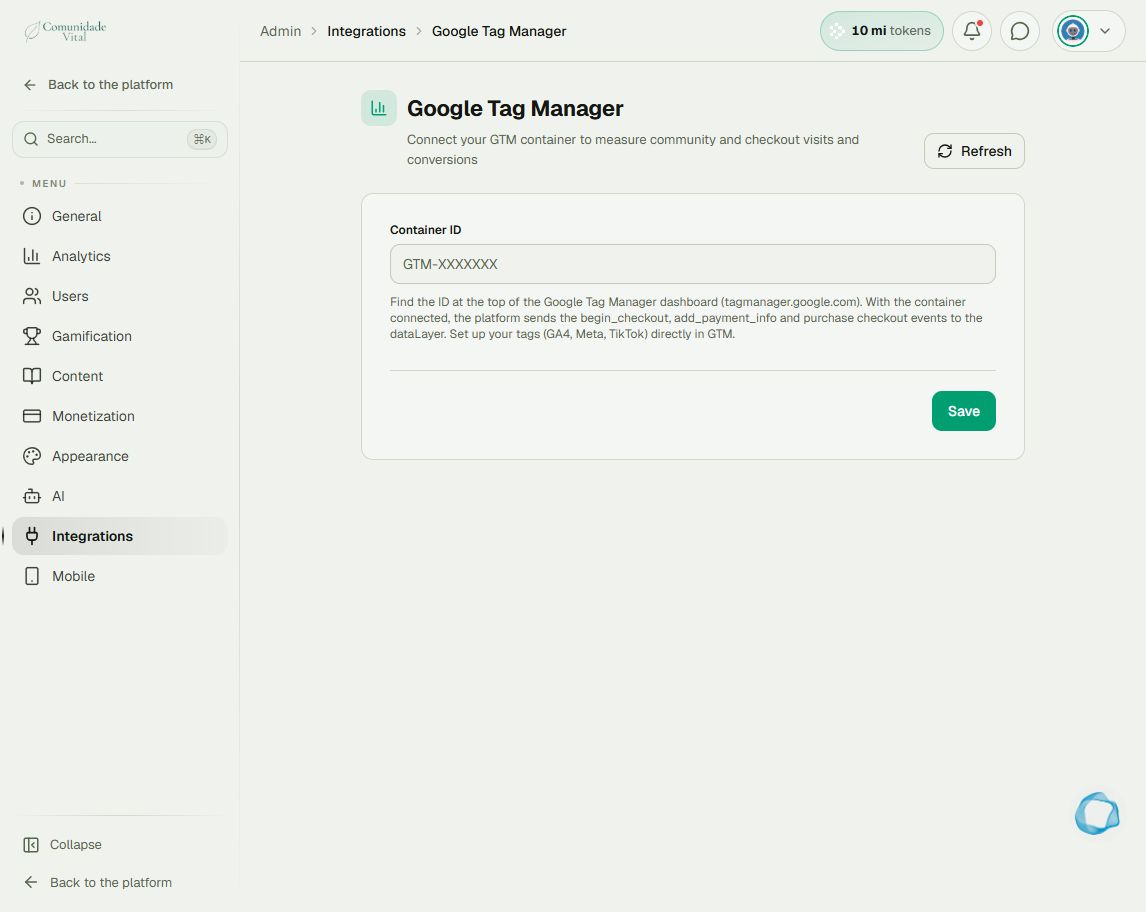
1Enter the correct container
Enter the GTM identifier, beginning with GTM-, in Container ID and save. Do not enter a Google Analytics 4 G- identifier here. Configure tags and triggers in GTM.
2Understand checkout events
Native checkout sends begin_checkout to the dataLayer on opening, add_payment_info when the form validates with a selected method, and purchase on confirmation. For Pix and boleto, confirmation must arrive while the page is open for that browser event.
3Check each surface
The container loads on platform pages and native checkout. The web content inside the app can also load it, but device restrictions can affect measurement. Cross-origin iframes and external checkouts need their own configuration. Validate events in each environment before comparing analytics reports with sales.
Tip
To check the post-payment destination, read How to choose where buyers go after payment. Do not treat a missing browser event as proof that no purchase occurred.
Frequently asked questions
Does the platform GTM track any iframe’s contents?
No. A cross-origin iframe is a separate context. The platform container does not automatically gain access to its contents.