
How to separate offers and products in incoming webhooks
Criteria act as delivery filters. For example, two offers for a course can grant different badges when each listener accepts only its matching offer identifier.
You need permission to view and manage this feature on your platform.
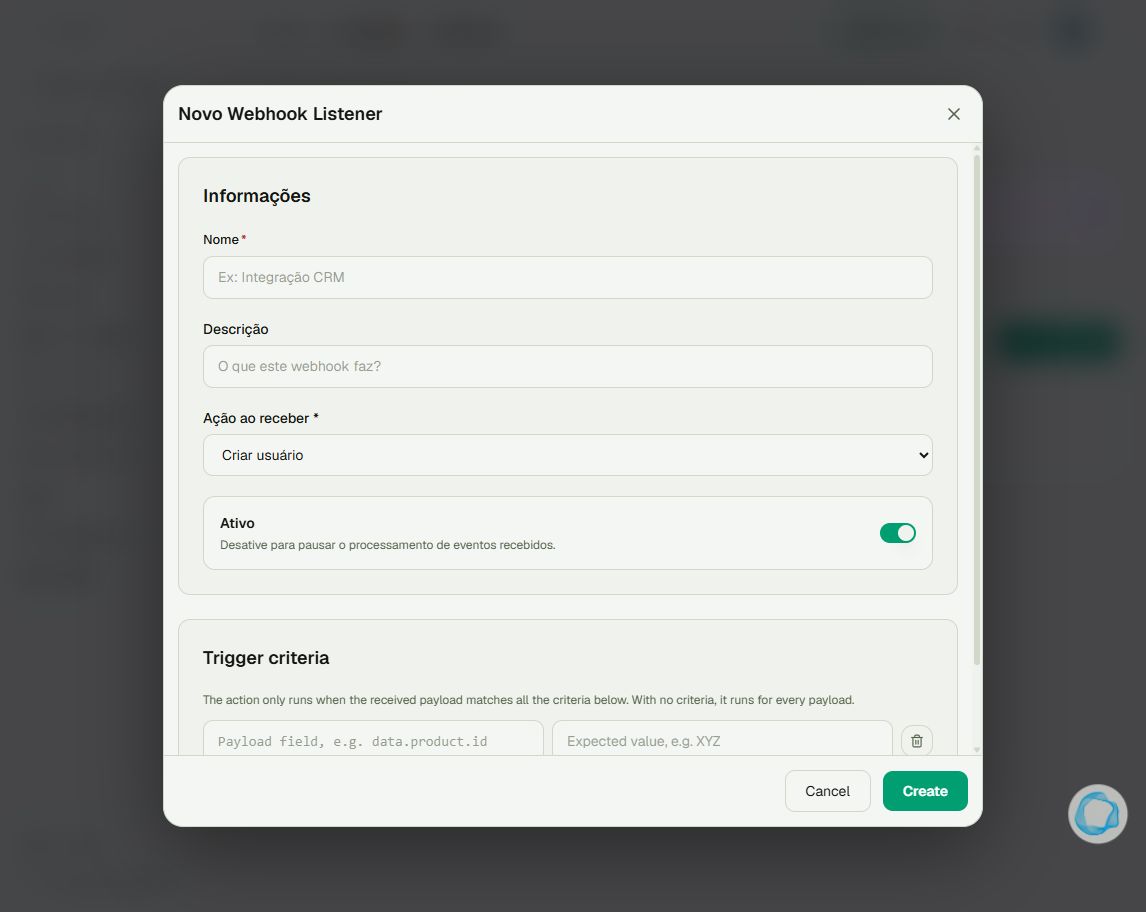
On the platform, open your profile picture and choose the administrative panel. Then follow: Integrations → Webhooks → Received → New listener.
1Define one destination per listener
Enter a name and choose Ação ao receber (action on receipt). Each listener has its own URL and one action. Plan one listener per offer or delivery. The same URL can receive events from several products, but that does not automatically create filters.
2Configure criteria using a real payload
Under Trigger criteria → Add criteria, enter the field path and expected value. Every criterion must match. Use the actual JSON for each offer; do not assume gateways use the same field. If the events contain no identifiable difference, these filters cannot separate them.
3Check changes and results
When recreating a product, update the ID used by its filter and check the URL in the gateway. Save, configure the action’s field mapping and verify one delivery for each offer using its log and resulting badge. Two gateway accounts with different product IDs may need separate listeners.
Tip
Payload capture can temporarily deactivate the listener: choose a window without sales and check events received during it. Also see How to investigate incoming webhook errors.
Frequently asked questions
What happens with no criteria?
The listener can run its action for any received payload. Naming a listener after an offer does not filter events.