
How to connect reward delivery to a badge
A reward can grant a badge, course or group. A badge can also signal another automation. For example, granting a badge reserved for a reward can trigger guidance for its new recipient.
You need permission to view and manage this feature on your platform.
On the platform, open your profile picture and choose the administrative panel. Then follow: Gamification → Stores → Edit → Items → Edit item.
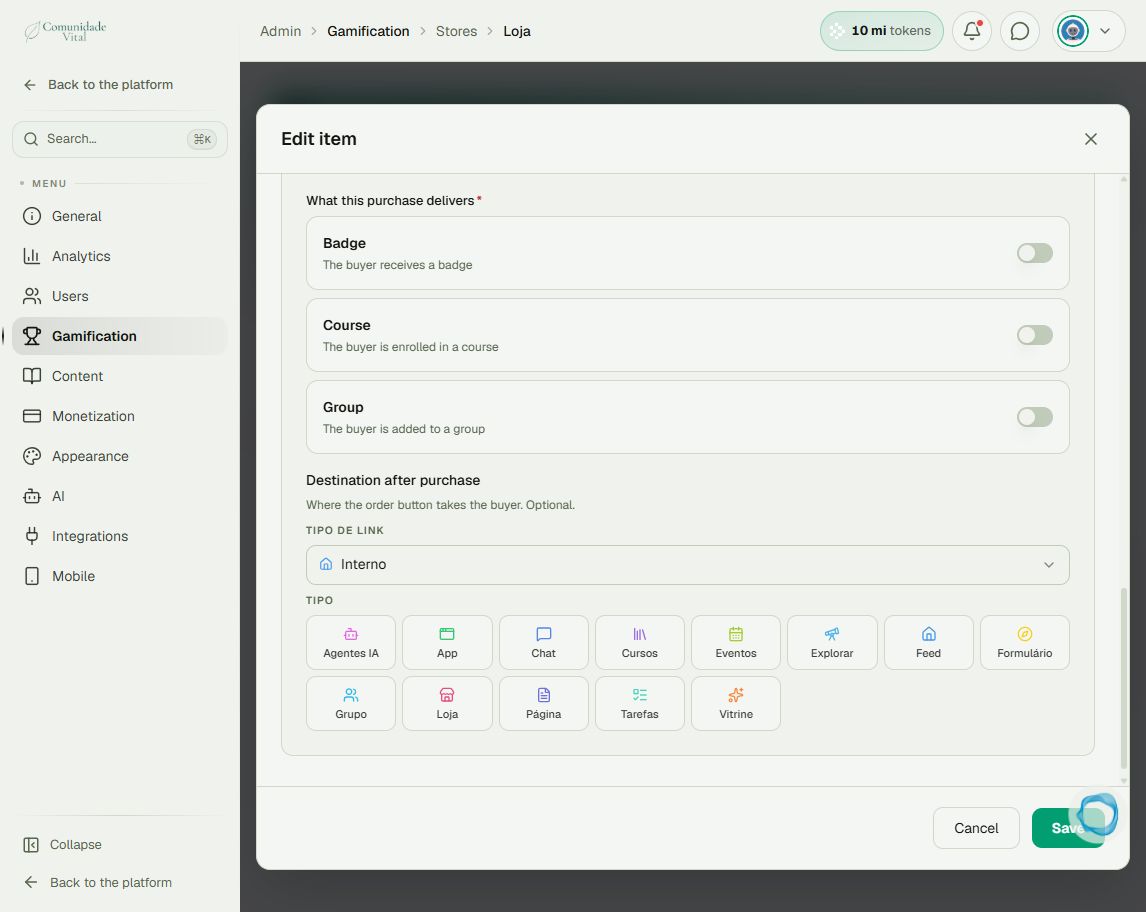
1Configure item delivery
In the editor, review Automatic release. Enabling it reveals What this purchase delivers. Choose Badge and the correct badge; review price, stock and status before saving. Course and Group are separate delivery choices that can be combined in the item configuration.
2Use the badge-received event
Under Integrations → Automations, configure the badge-received trigger and restrict it to the reward’s badge. Alternatively, use Webhooks → Sent with the corresponding event and badge filter. Check the recipient and action before enabling it.
3Check this mechanism’s limits
The panel’s selector has no direct event for every store redemption. Receiving a badge is not the same as placing an order: if the person already has the badge, another redemption may not create a new assignment. For repeated per-order deliveries, review store orders and do not rely solely on this trigger.
Tip
For automation setup, see How to grant a badge with an automation. For limitations, read When to use native automations or keep an external tool.
Frequently asked questions
Can the order button open content?
Yes. Review Destination after purchase in the item. This destination is separate from granting a badge and does not itself grant access permission.