
How to change your logo, images, and colors
Your platform’s visual identity combines brand images with a color theme.
When updating your brand, for example, you can replace the logo and adjust button colors. These are two separate pages with different saving behavior.
Click your profile picture in the top-right corner and open Admin panel. Use Search... in the sidebar to find the last item in this path: Appearance › Theme.
1Adjust the theme
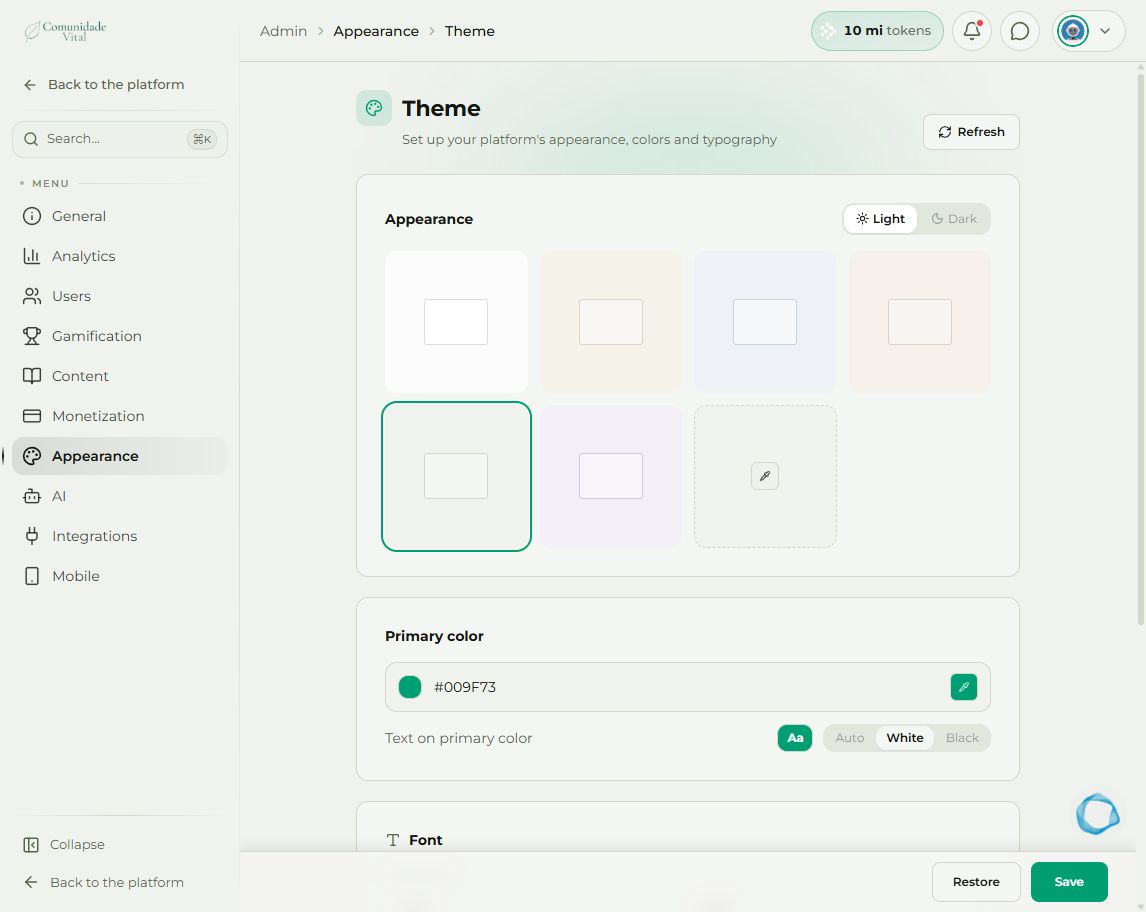
Under Appearance, choose Light or Dark and a background. Adjust Primary color and check Text on primary color: Auto, White, or Black. Use the preview to check contrast before saving.
2Save the colors
Click Save at the bottom. Restore discards local unsaved adjustments; it does not undo a previous save. Reload the platform to check the result.
3Replace the logo and images
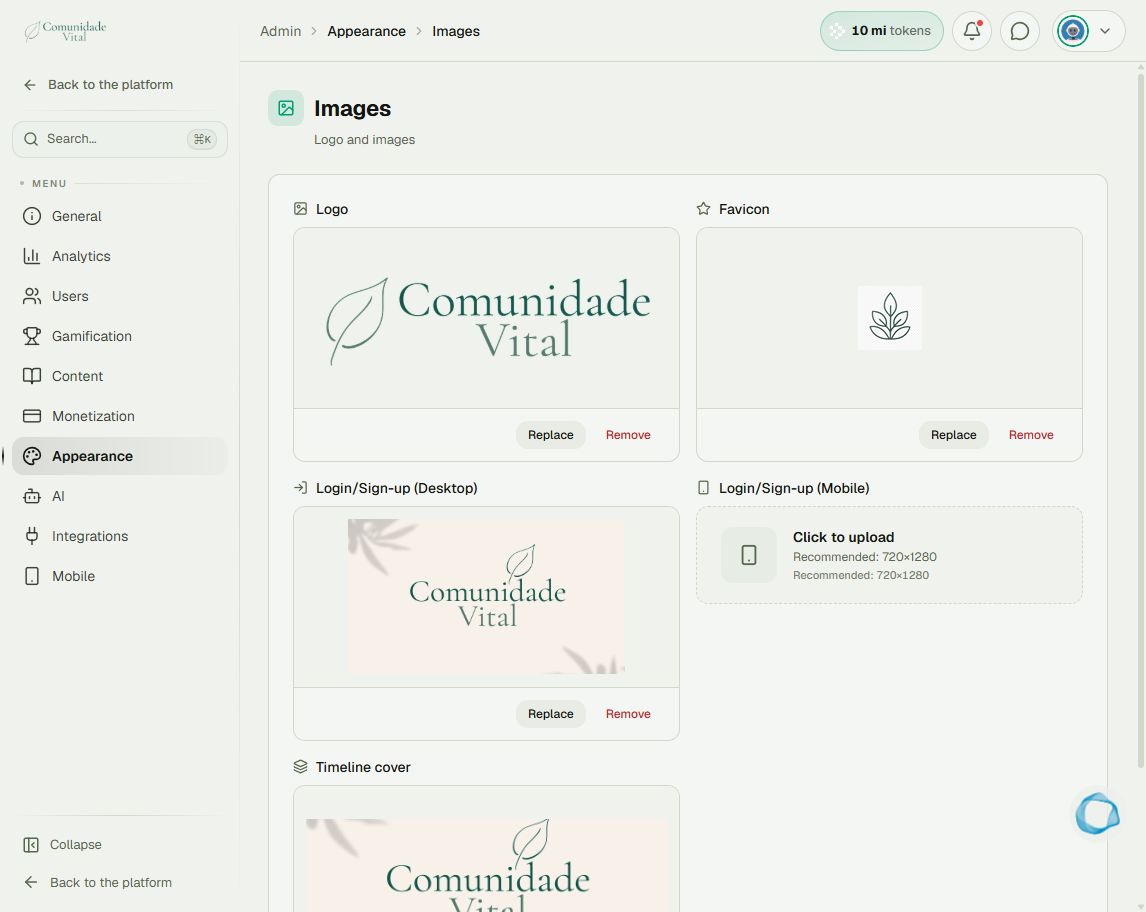
Use admin search to open Appearance › Images. Find Logo, Favicon, Login/Sign-up (Desktop), Login/Sign-up (Mobile), or Timeline cover. Click Replace or the empty field and choose or upload an image from the library. Replacement saves automatically; check the file before selecting it.
Tip
Prepare suitable desktop and mobile versions and follow the proportions indicated for each field. To organize home-page content, read the showcases article.
Frequently asked questions
Does the color apply only to my account?
No. The theme configures the platform for its users, not a personal administrator preference.
I saved, but still see the old image.
Reload and check another session. Cache updates may take a few minutes. If it persists, tell support which field changed.