
I saved a lesson, but students cannot see it
For a lesson to appear, its required details must be complete and both the lesson and course must be published. Access rules and scheduling can also limit visibility.
For example, you may see the lesson as an administrator while students see a course with no content. Start by checking draft status and required fields.
Start on the platform, outside the admin panel. If you are in the panel, click Back to the platform. Follow this path: Cursos (courses) › your course › Manage › Módulos (modules).
1Check whether the form was completed
Use the lesson’s edit control. Check its title, content type, text or file, and Approximate duration (minutes). A disabled button can mean one of these is still missing. For video, check whether duration was filled automatically and enter it if necessary.
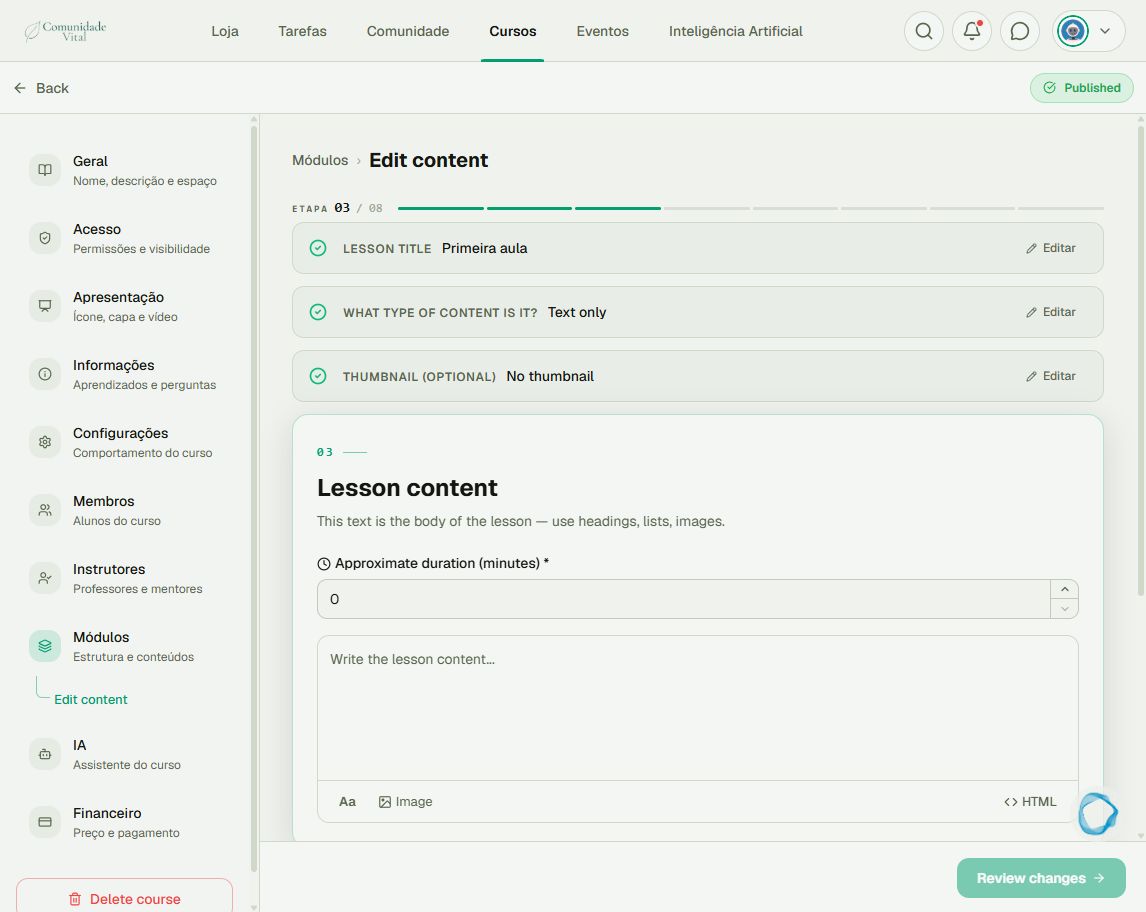
2Check the lesson and course status
Complete the review and save. Return to the module list: if the lesson is a Draft, use its Publish control. Also check the course status at the top of management. A published course can contain draft lessons.
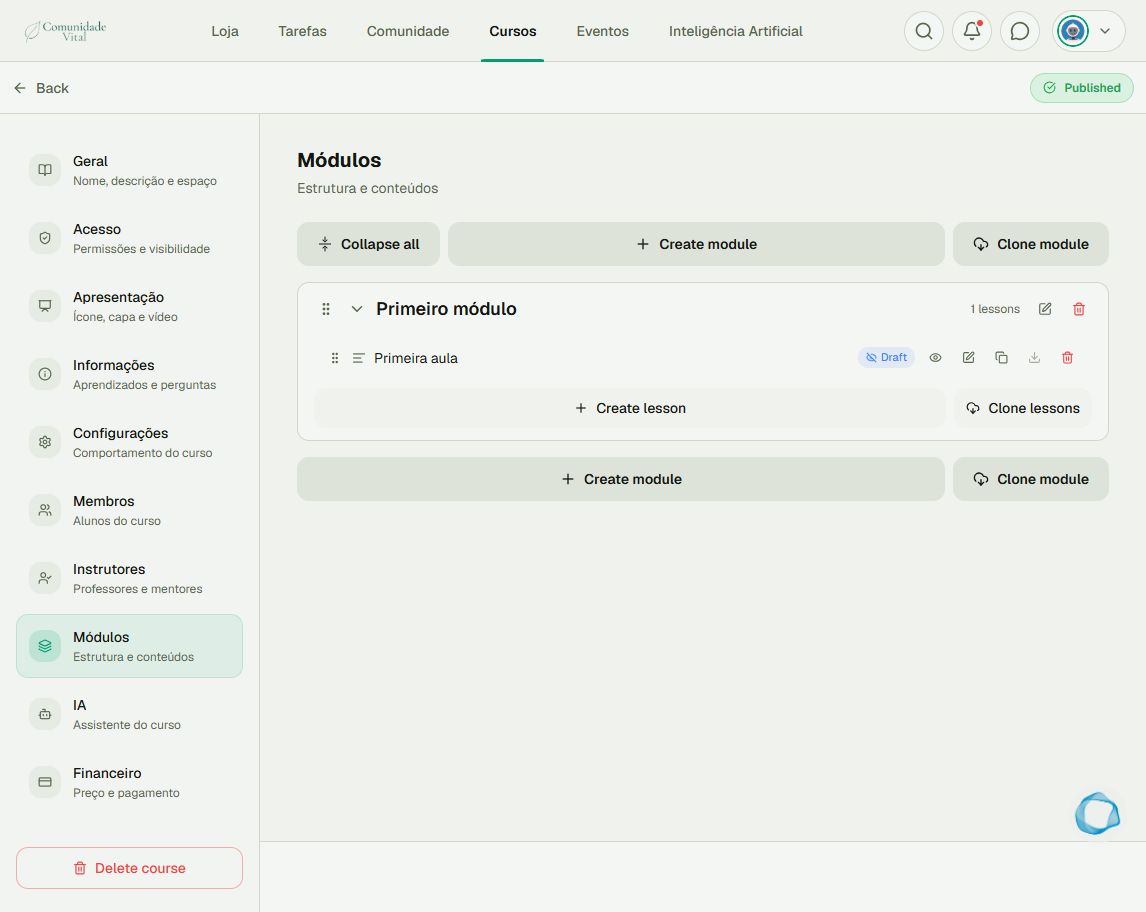
3Check availability for that person
If it is published, check Scheduling in lesson settings and Sequential content in course settings. Then verify that the person has course access. Reopen the page with an authorized student account; the administrator view does not establish student access.
Tip
If the problem is uploading a video, read the upload article. For availability by date or progress, read the lesson-release article.
Frequently asked questions
Do I need to update the app to publish a lesson?
Publishing a lesson does not require releasing a new app version. First check the form, statuses, and access rules.
What should I send support if it continues?
Send the course link, lesson name, affected account, and screenshots of statuses and any error. Explain what the administrator sees and what the student sees. Never send a password.