
How to view and export user data
The user list lets you find people and export a selected part of your user base to Excel.
For example, you can select participants who hold a badge before checking their records. Choose the audience before exporting to avoid a larger file than you need.
Click your profile picture in the top-right corner and open Admin panel. Use Search... in the sidebar to find the last item in this path: Users › Users.
1Set the filters
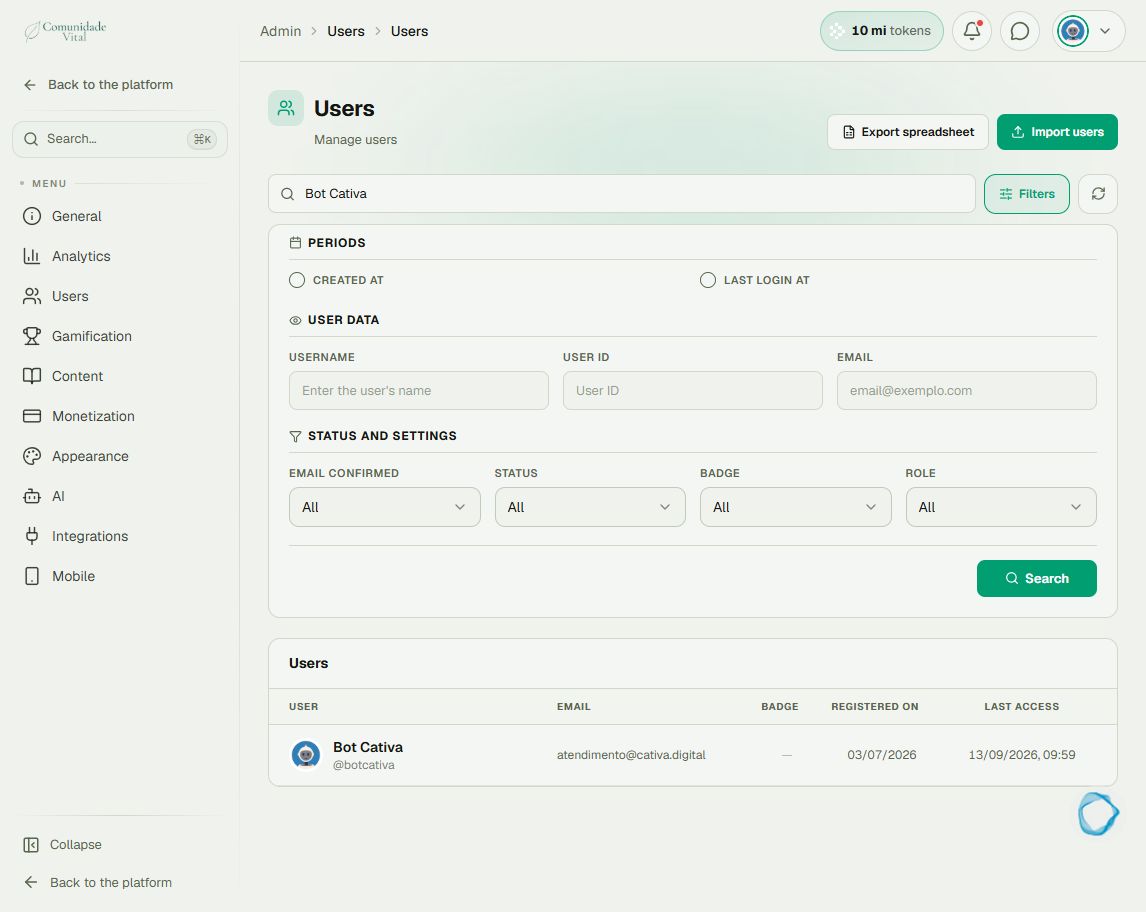
Click Filters. Choose criteria such as Email, Status, Badge, and Role. For registration or last-login dates, enable the period and enter the desired range. Click Search to apply.
2Check the list and export
Check that the result matches your intended audience. Click Export spreadsheet at the top and wait for the file. The export should match the list’s filters.
3Check the file
Open the downloaded workbook and check its headers, number of people, and a sample of records. If a filtered list produces the entire user base, keep the filter and both counts to report to support.
Tip
For a badge’s expiration and assignment source, use the export on that badge’s page. The general user workbook does not replace every specialized report.
Frequently asked questions
Does exporting change accounts?
No. It generates a file without modifying accounts or notifying users.
What if I need CSV?
Export to Excel, then convert the file to CSV in a spreadsheet editor. Simply renaming the extension is not enough.