
How to track student progress
Progress shows lesson completion in a course. It helps distinguish enrollment from advancement through content.
For example, before helping a student with a missing certificate, check remaining lessons and whether the course contains scheduled content.
Click your profile picture in the top-right corner and open Admin panel. Use Search... in the sidebar to find the last item in this path: Users › Users.
1Open the person’s courses
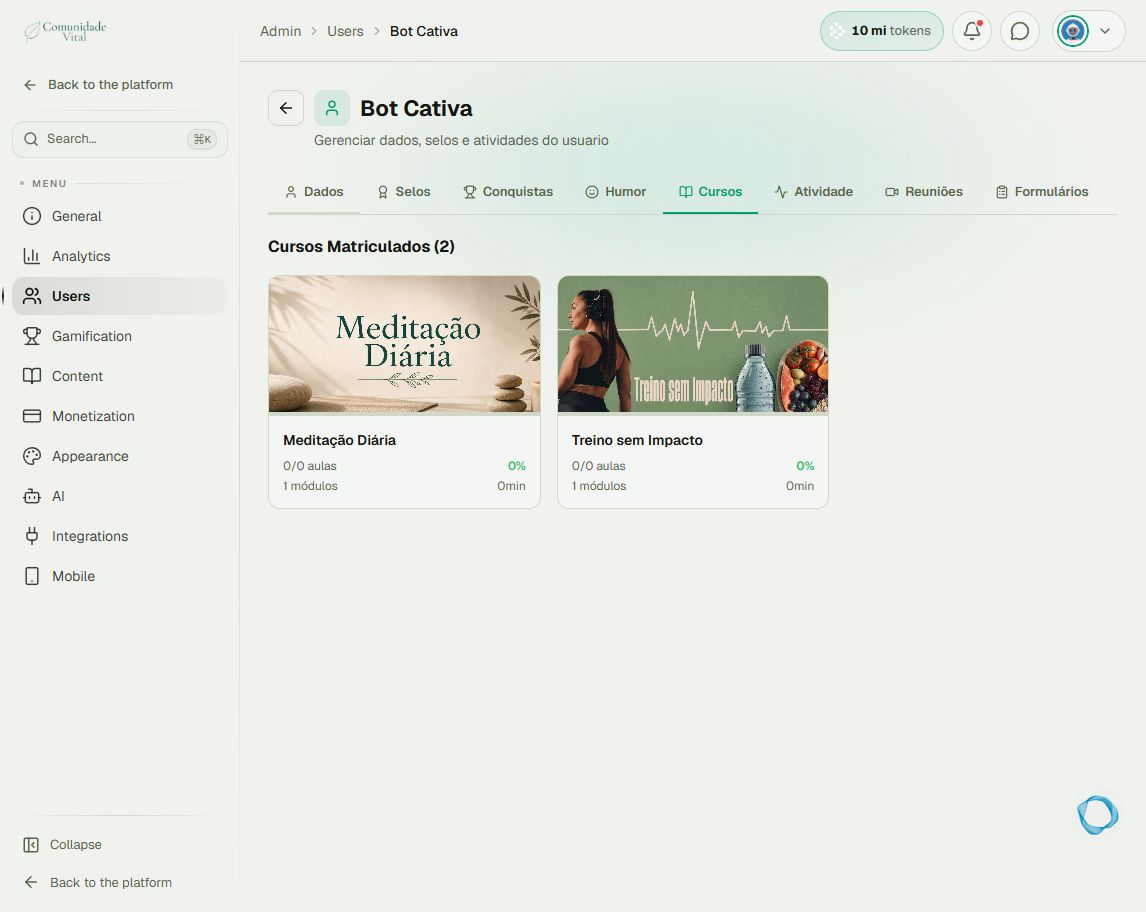
Search by email, open the record, and click Cursos (courses). Cards show enrolled courses, percentages, and lesson counts. A course whose lessons are all drafts may show zero published lessons.
2View course details
Open the course card to inspect completed modules and lessons and available dates. Compare the lesson the student mentions with this history. A published, incomplete lesson may prevent course completion.
3Use the dashboard for a group overview
For a class overview, open Analytics › Dashboard, choose its courses tab, and select the course. For a watched-lessons spreadsheet, use the watched-lessons tab, apply filters, and select Export Excel. The individual record does not offer this export.
Tip
Read the certificate and staged-release articles when progress differs from expectations. A draft lesson and a published lesson with a future date do not affect the calculation in the same way.
Frequently asked questions
Does opening a course mean completing it?
No. Enrollment, access, and completion are different information.
Can students see their peers’ progress?
The administrative view is for the team. In the course, students track their own progress.