
How to create an event and define who can access it
An event brings together a meeting’s date, location, instructions, and audience. It can be online or in person, with optional attendance confirmation.
For example, a welcome meeting can be open to everyone or associated with a class badge. Define the audience before publishing and announcing it.
Start on the platform, outside the admin panel. If you are in the panel, click Back to the platform. Follow this path: Eventos (events) › Create event.
1Enter details and dates
Using an administrator account, open Eventos (events) and click Create event. Under Essentials, enter a title, description, and cover and choose the initial status. Under When, choose a single day, multiple days, or a continuous period and enter the start and end or duration.
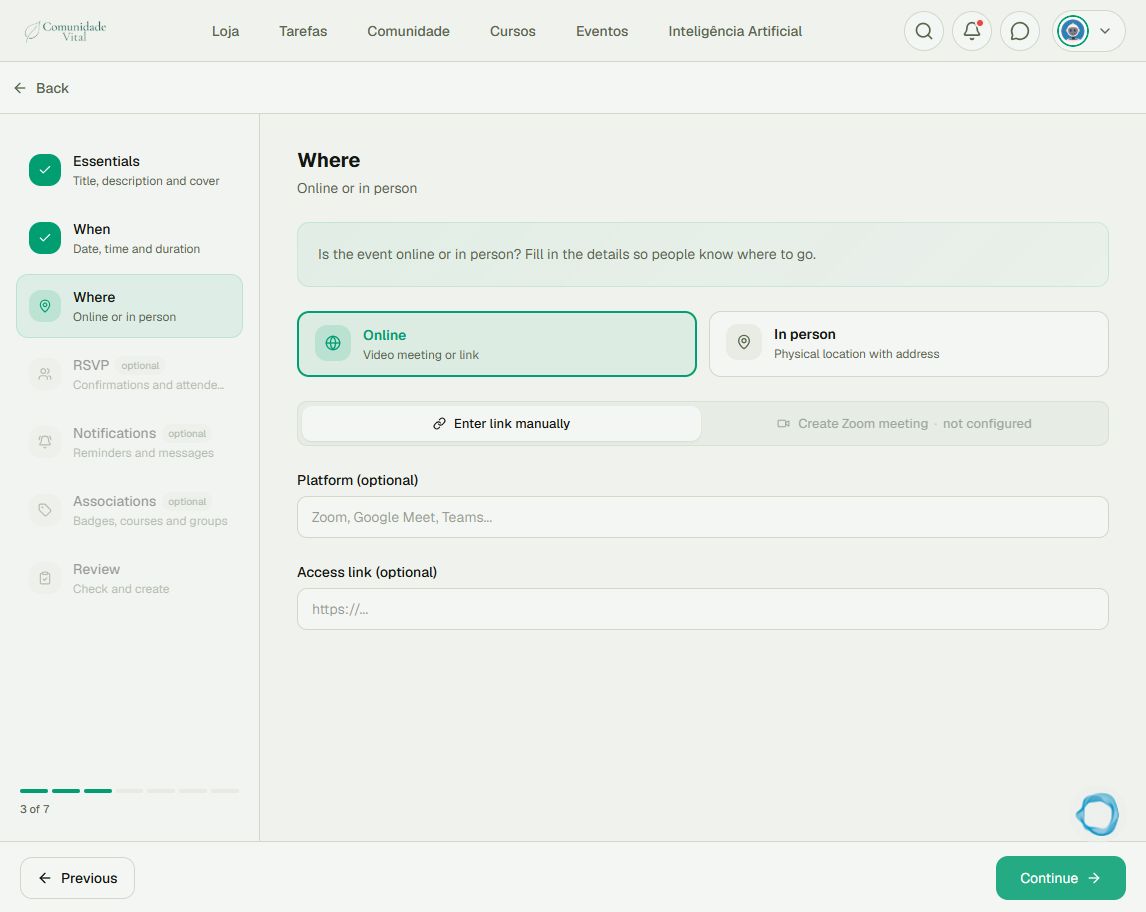
2Specify where it takes place
Under Where, choose Online or In person. For online meetings, choose Enter link manually and provide the access link. Create Zoom meeting requires a configured integration. For in-person meetings, enter the venue details.
3Review attendance and notifications
Under RSVP, enable attendance confirmation if needed and set capacity where applicable. Under Notifications, choose reminders and review the messages. Showing the event in the announcement bar is a separate option; decide whether to enable it.
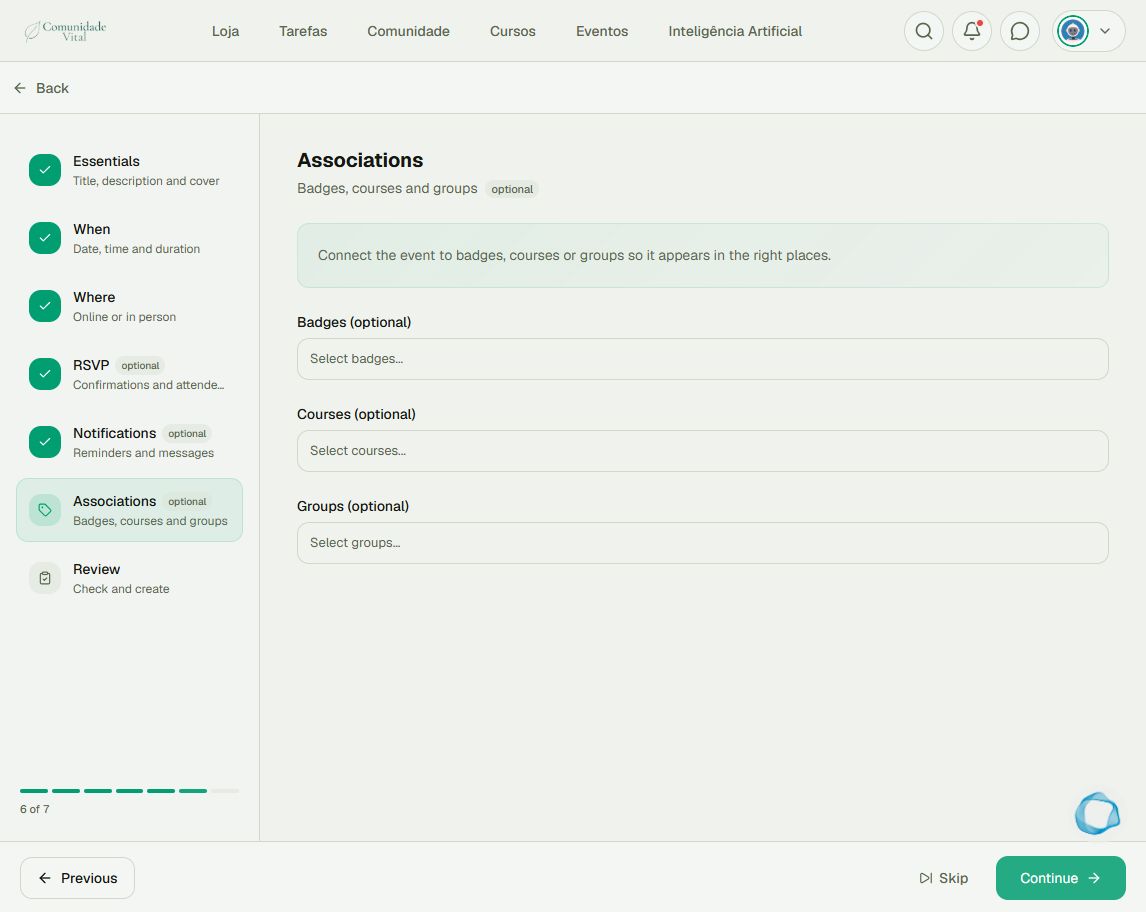
4Set associations and finish
Under Associations, select the badges, courses, or groups that define the event audience. With no associations, it is public; with associations, access is restricted to the corresponding audience. Check the selection in the review before creating the event. Keep draft status while preparing it. After publishing, verify access with an account in the intended audience.
Tip
To create the video meeting, read the Zoom integration article. To understand outgoing notifications, read the notification and push articles.
Frequently asked questions
Does multiple days create automatic weekly recurrence?
No. You choose the dates. This format uses the same time on each selected day.
Is creating an event the same as creating a Zoom meeting?
No. The event organizes the meeting. You can enter a link manually or generate it through Zoom when the integration is ready.