
How to send a push notification
A push notification sends a short announcement to a selected audience. Its opening link can take participants directly to the relevant content.
For example, tell a class that this week’s material is available. Select the class badge, write a concise message, and use the content URL as its destination.
Click your profile picture in the top-right corner and open Admin panel. Use Search... in the sidebar to find the last item in this path: Mobile › Push notifications.
1Write the announcement
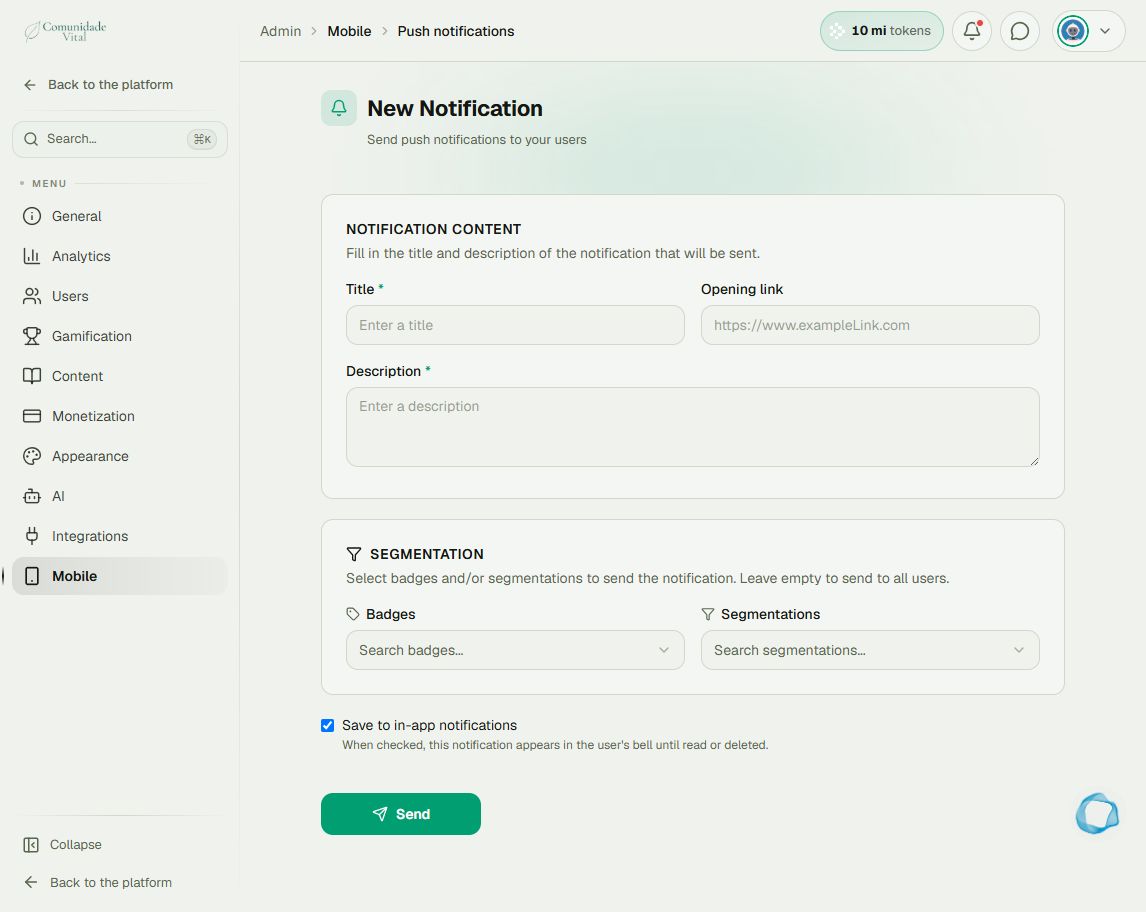
Enter Title and Description. Under Opening link, enter the click destination. Keep the message short and put the main information first.
2Review the recipients
Select audience Badges and/or Segmentations. Leaving both empty sends to all users. Check this before sending. A notification does not grant content access: recipients still need the appropriate permission.
3Choose whether to keep it in the bell
Keep Save to in-app notifications checked to also place the announcement in the bell. Review text, destination, and audience, then click Send. Check receipt with an account in the audience and device notifications enabled.
Tip
For event-based or scheduled messages, read the automation articles. For an announcement people see when opening the platform, consider General › Announcements.
Frequently asked questions
Where does a click go without a link?
To the platform’s default opening page. Enter a destination to direct users to a specific page.
Does every announcement become an email?
No. Push, the bell, and email are separate channels. Read the article about notification triggers.