
How to set up a custom subdomain for your platform
Give your platform an address that belongs to your brand. For example, your website can stay at example.com while learners use app.example.com. A CNAME record is a DNS pointer that tells the internet where to find that subdomain.
You need platform administrator access and access to the DNS zone for a domain you own. If someone else manages DNS, send them the values below. Choose a subdomain that is not already used by another service.
How to reach this screen
On the platform, open your profile picture in the upper-right corner and choose the administrative panel. In the sidebar, click Search... and look for Domain, under General. Open that result to reach the screen below.
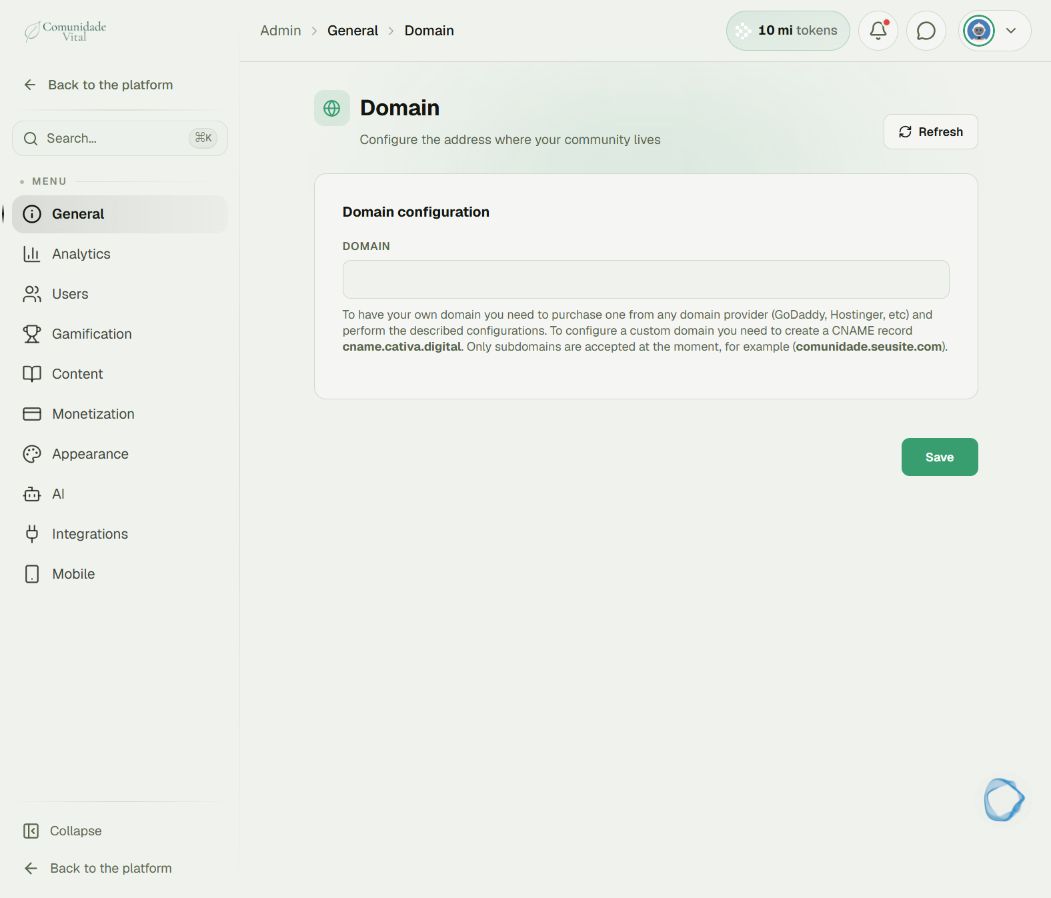
1Choose the address and find its DNS settings
Sign in to the provider that manages your domain’s DNS. Open the domain and find DNS, Manage DNS or the DNS zone editor. If another company operates your nameservers, make the change there. For app.example.com, the record name is usually just app; check whether your provider adds the domain automatically.
2Create the subdomain’s CNAME record
Add a CNAME record. In this example, set the name to app and the target to cname.cativa.digital. Do not include https:// or a path in the DNS target. Keep the provider’s default TTL. If a proxy option is available, select DNS only, following Cativa’s subdomain guidance. Before replacing an existing record with the same name, check which service uses it. Preserve email records and records for other addresses.
3Register the address in the platform
Return to the Domain screen shown above. Enter the full subdomain, such as app.example.com, then click Save. Do not confuse your chosen address with the CNAME target: cname.cativa.digital belongs in the DNS record and is not your branded address.
4Check access before sharing the address
Open the new address over HTTPS and check that it loads the correct platform without a certificate warning. DNS changes are not instant; timing depends on the provider and caches. If it fails, check the record name, target, proxy setting and address saved in Cativa. Do not delete unrelated records to speed things up. If the issue persists, send support the subdomain, change time and error message.
Tip
A subdomain lets your main website stay where it is. For the difference between a CNAME and an IP record, read Root domain or subdomain - which DNS record should you use.
Frequently asked questions
Can I use example.com without a subdomain?
The current screen states that only subdomains are accepted. Confirm the procedure with Cativa before changing DNS for a root domain.
Do I need to transfer my domain?
This procedure uses a record in your DNS zone. It does not require transferring ownership of your domain to Cativa.