
How to find settings in the admin panel 2.0
The admin panel brings your platform controls together. Its search is a shortcut to the setting you need.
For example, to manage access for a class, you can search for Access badges without opening every menu category.
1Open the admin panel
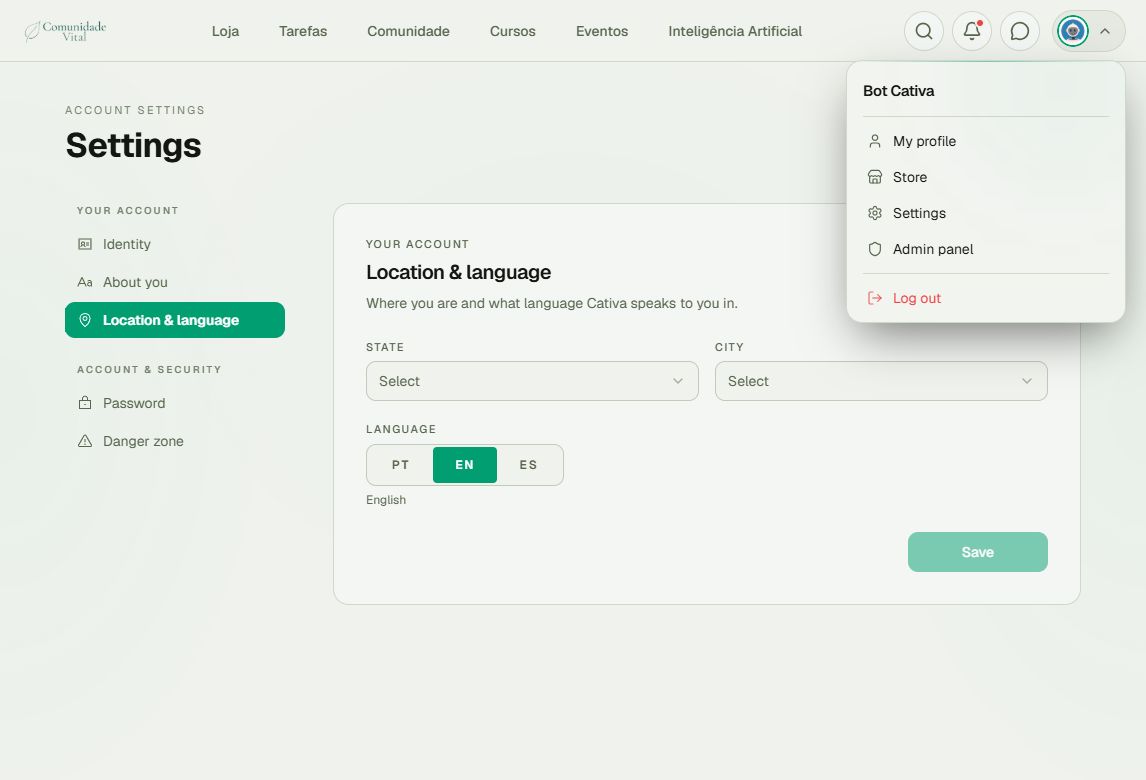
With the platform open, click your profile picture in the top-right corner. Choose Admin panel. The Settings option in this menu opens your personal account preferences; choose the admin panel to manage the platform.
2Find a setting with search
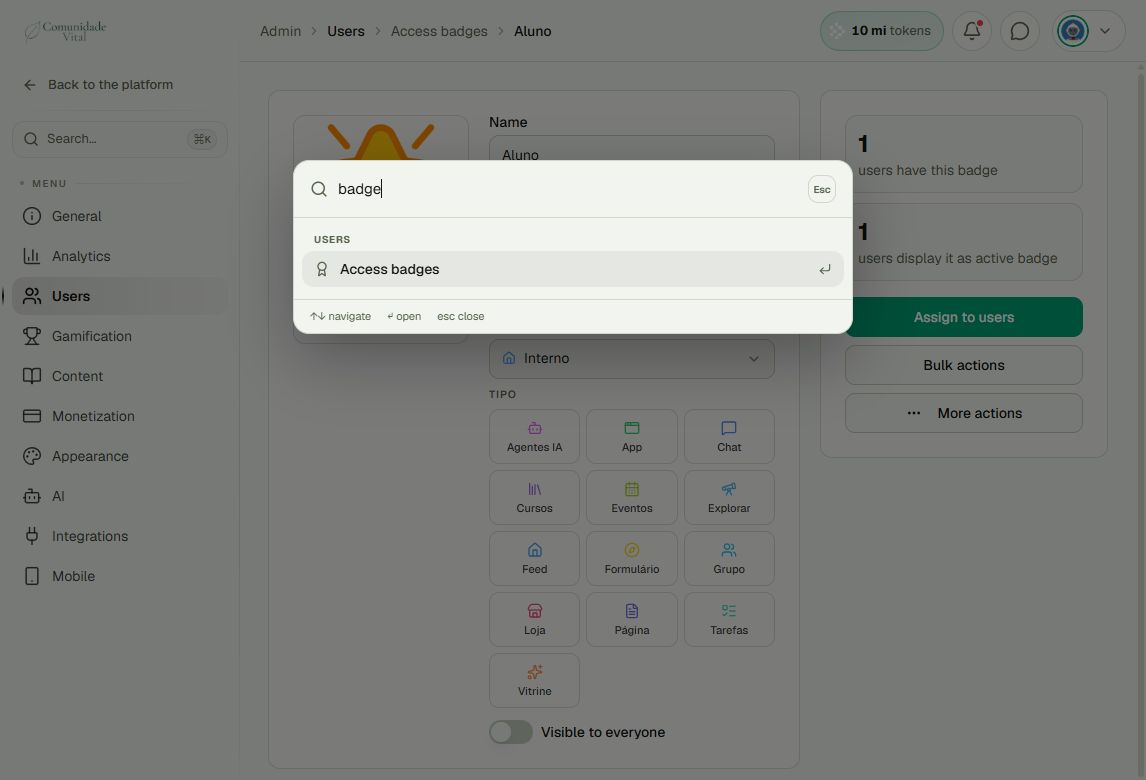
In the sidebar, click Search.... Enter part of the setting name. In this example, enter badge and choose Access badges under Users.
3Check the destination page
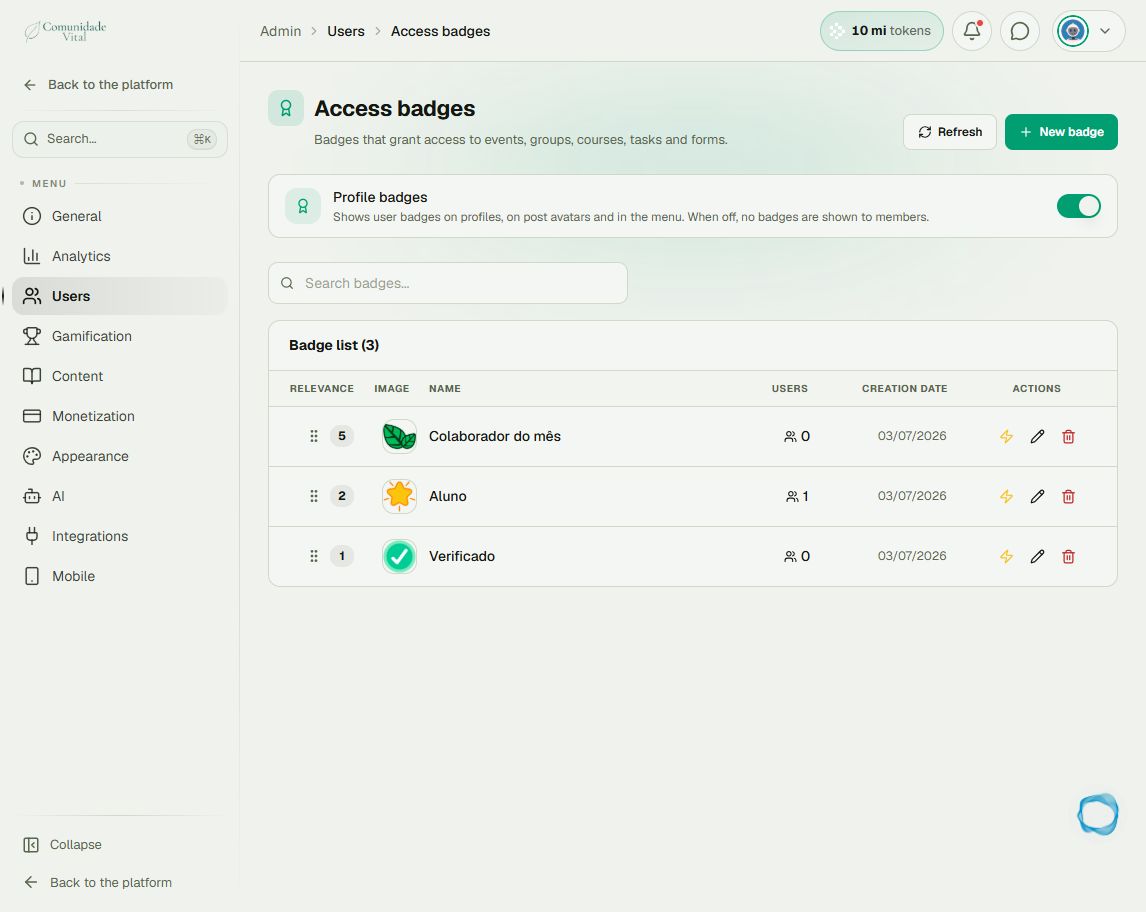
Check the title and breadcrumb at the top. In this example, the destination is Users › Access badges. Opening a page through search does not save or change its settings.
Tip: use the name shown in the interface
If there is no match, try a shorter part of the name or check the category in the sidebar. Names may change with your account language.
To continue this example, read the articles about access badges and badge assignment.
Frequently asked questions
I cannot see the admin panel in my menu. What should I do?
Check that you are using the correct account and ask the platform administrator to check your permissions.
Does this search find people and content?
The search shown here locates admin pages. To find a person, open Users and use the user list's own search.