
How to help a student who cannot sign in
When a student reports an access problem, first separate two situations: they cannot sign in, or they can sign in but cannot find the content.
For example, a student might try to open a course after a purchase. A rejected password and a locked course need different checks. This article helps administrators choose the right path.
1Find the account in the user list
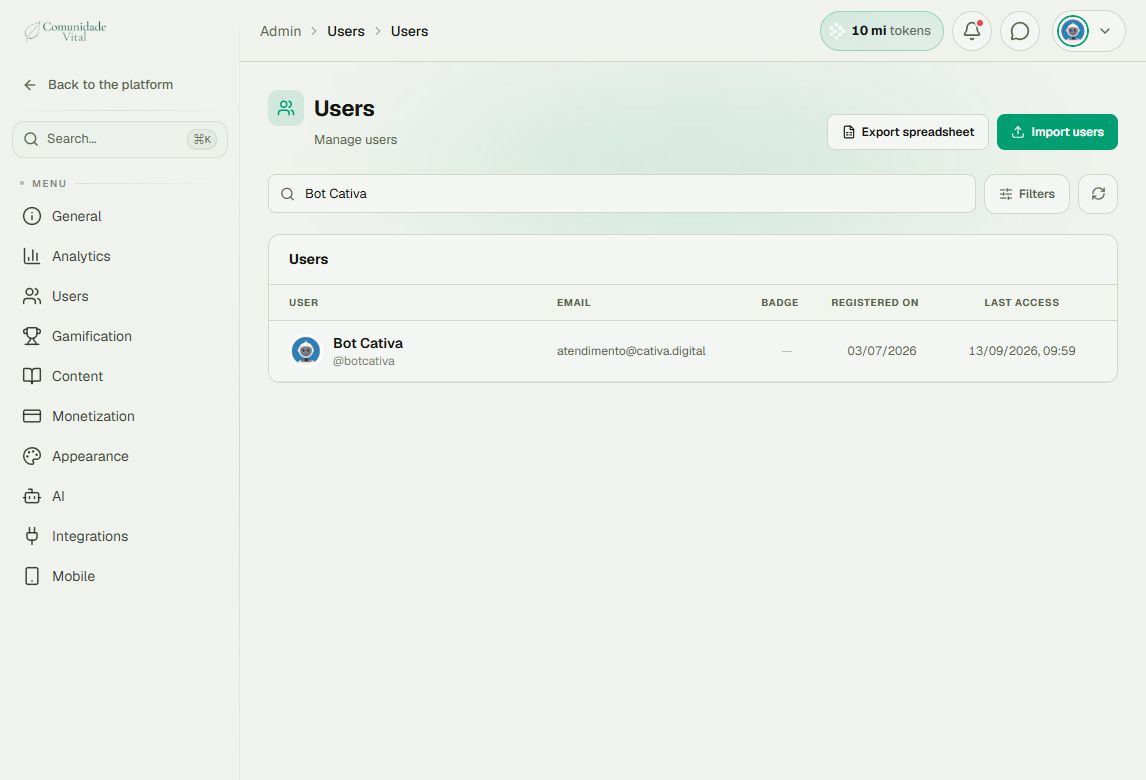
Click your profile picture in the top-right corner and choose Admin panel. In the sidebar, click Search..., search for Users, and open the result in the Users category.
Use the list search to find the person by their registered email. Make sure you are on the correct platform: accounts with the same email on different platforms are independent.
2Check status and access validity
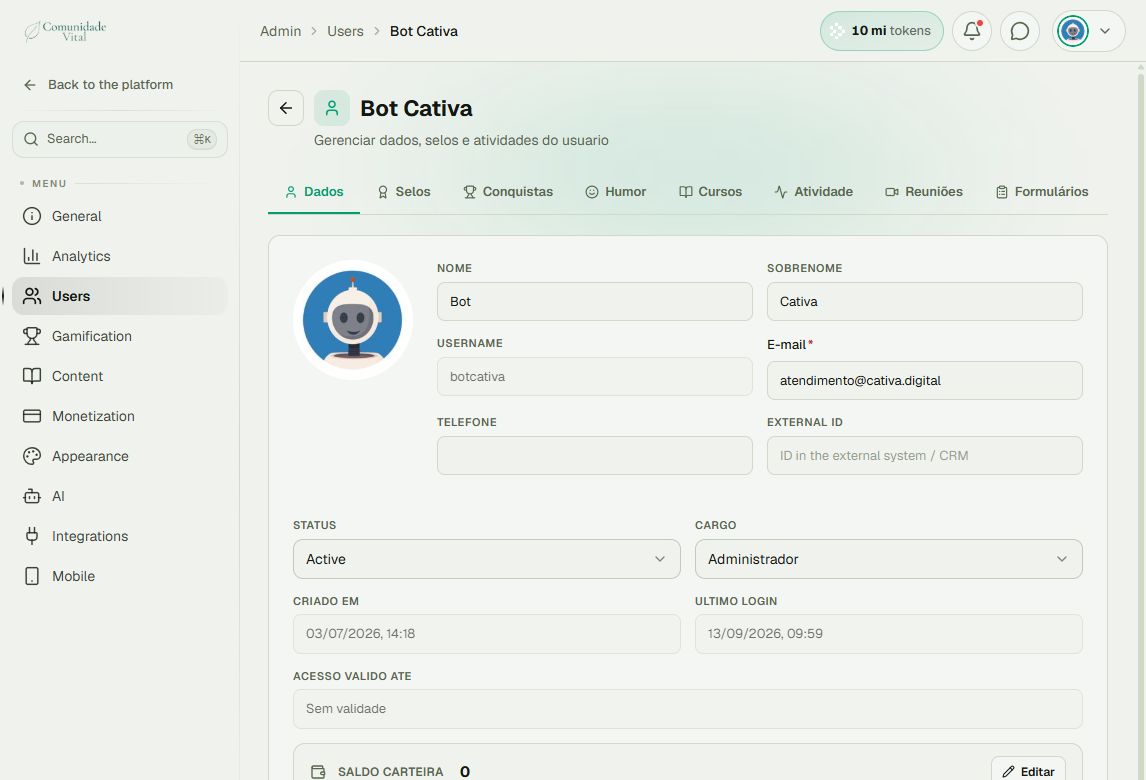
Open the person's record and check the Dados tab (account details). Several labels in this record retain their Portuguese names.
Check Status and Acesso válido até (access valid until). An inactive, banned, or expired account is not resolved simply by resetting its password. Before changing a status, confirm with the program owner whether the person should have access.
3Choose the next step
- Invalid email or password: check whether the email exists on this platform, then guide the person to password recovery on the sign-in page.
- Inactive or banned account: check the situation with the platform owner.
- Expired access: check the access period and the renewal or purchase status.
- Too many attempts: stop retrying and wait before another attempt. The documented waiting window is 15 minutes.
- Can sign in but cannot see the course: check the content rules and the person's assigned badges.
Tip: do not reset passwords by trial and error
A password change ends the person's active sessions. If they can already sign in, start with badges and content rules. Read the password-recovery and badge-access articles.
Frequently asked questions
The person is not in the list. What should I check?
Check the email, the platform address, and whether registration was completed. Receiving an invitation does not mean the account has been created.
Everyone suddenly lost access. Should I use the same process?
If several people are affected at once, collect the address, error message, start time, and whether it happens in the browser or app. Send that information to support for investigation instead of changing accounts in bulk by trial and error.
Does an approved purchase guarantee that the badge was delivered?
Check the buyer's account and badges. If access is missing, follow the payment-integration troubleshooting process.