
Who can see my tasks and proof of completion
A task assigned to your account does not mean every completion is visible only to you. The visibility option lets you share activity with other members.
For example, you may want to track reading in your own list or share your progress with participants. Decide before submitting a photo or text as proof.
On the platform, click Tarefas (Tasks) in the top menu. This custom shortcut retains its Portuguese name in the illustrated platform; its position may vary. In your task list, click New task. If you are an administrator using another view, choose Member under View as and select your own account.
1Find the visibility option
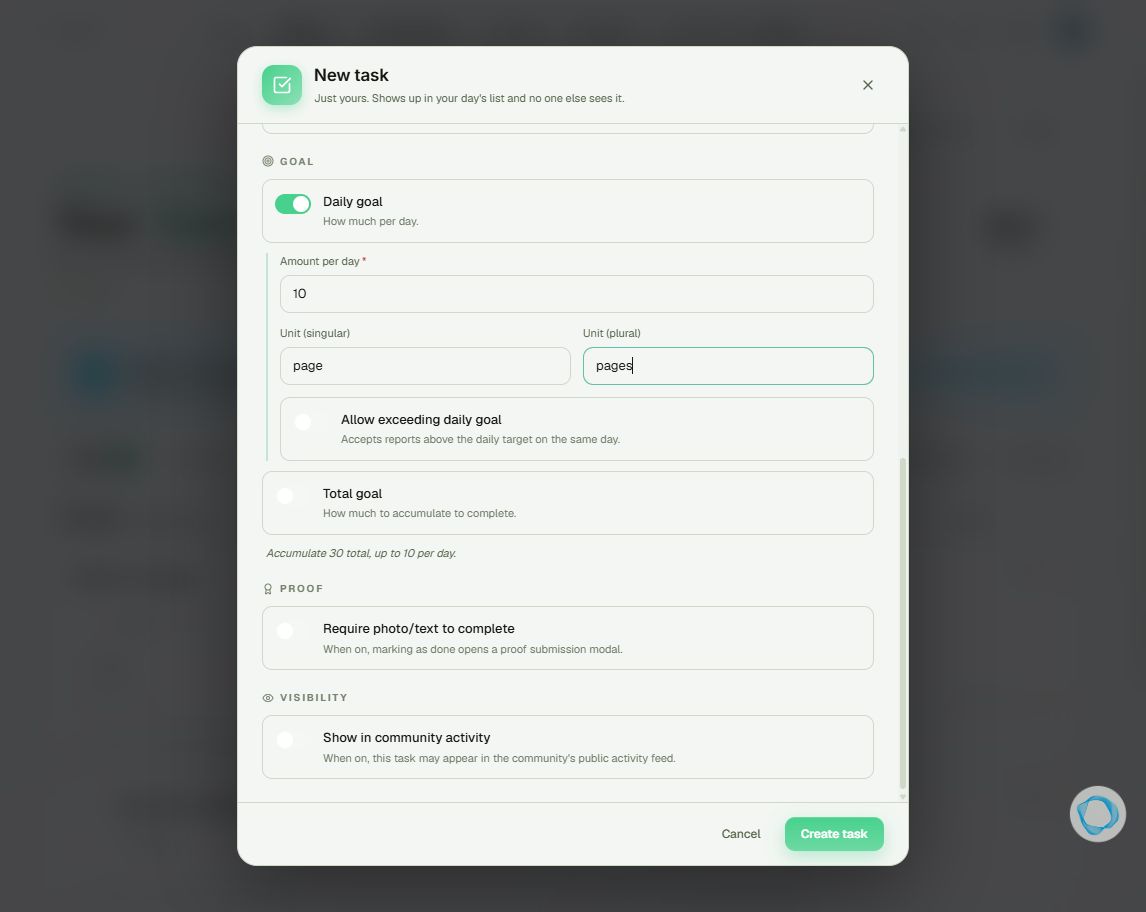
From New task, scroll to Visibility and find Show in community activity. It is off in the screenshot. For an existing task, use the edit button on its card and review the same field.
2Choose whether to share completions
Leave the option off if you do not want to publish activity from this task. When enabled, completions may appear to signed-in members in the Tasks Activity area. This area is separate from the main post feed.
3Consider what your proof contains
A completion shown in activity may include your name, avatar, task title, and submitted text or file. Require photo/text to complete requires proof; it does not make that proof private. Review both controls before creating or saving the task.
Tip
The form’s “no one else sees it” wording is not an absolute confidentiality guarantee: administrators can view personal tasks when viewing a member’s experience. To set up the activity, read How to create a personal task with a schedule and goal.
Frequently asked questions
Does it appear in the main platform feed?
The sharing described here happens in Tasks activity, not as a post in the main feed.
Does my mentor automatically see all my personal tasks?
The mentor’s list does not automatically include every personal task. Completions can still appear in activity when sharing is enabled.
Does switching it off undo what others already saw?
Do not rely on that to undo earlier exposure. Set visibility before sharing, and do not submit information you do not want other participants to see.