
How to create a personal task with a schedule and goal
A personal task turns a commitment into something you can track in your list. The schedule defines the days it appears; the goal defines how much you want to achieve.
For example, you can plan to read 10 pages on weekdays. The task belongs to your account. This procedure does not assign activities to a class.
On the platform, click Tarefas (Tasks) in the top menu. This custom shortcut retains its Portuguese name in the illustrated platform; its position may vary. In your task list, click New task. If you are an administrator using another view, choose Member under View as and select your own account.
1Name the task and choose the days
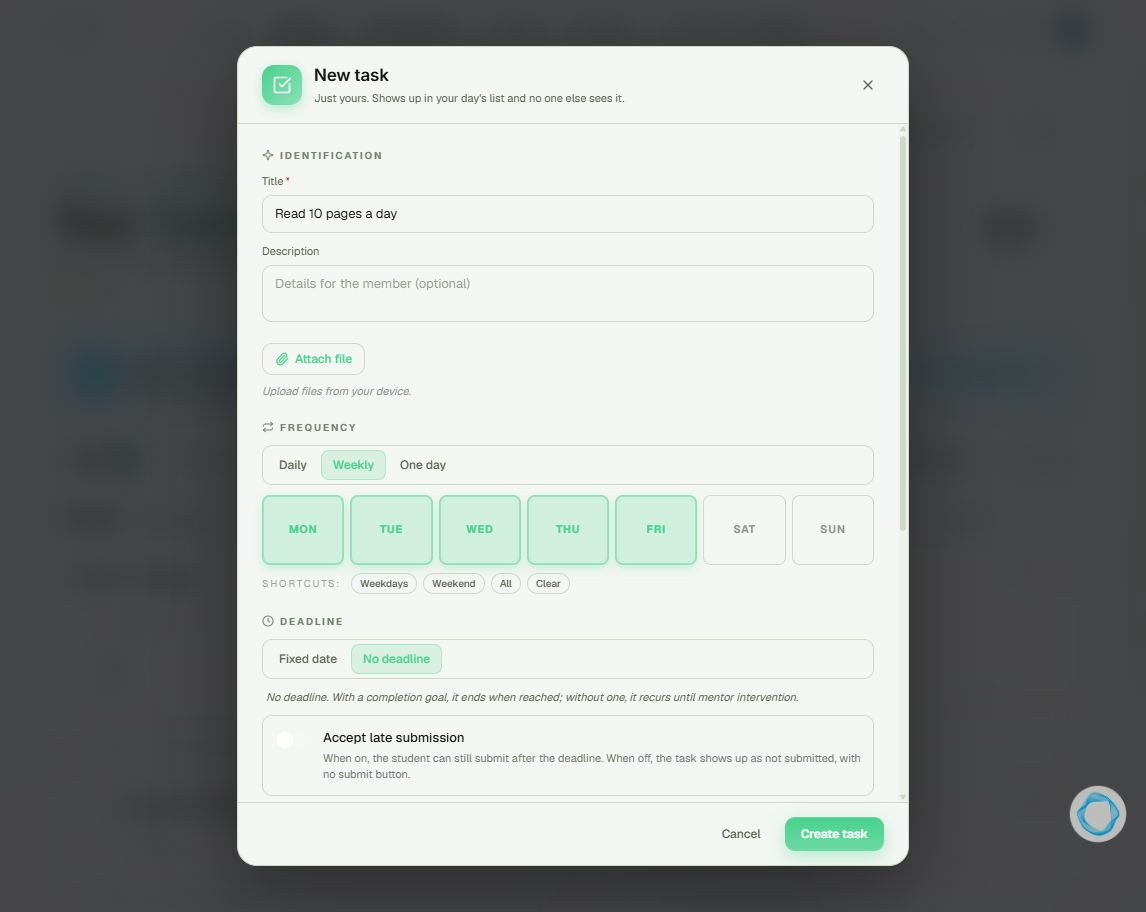
Enter a recognizable action in Title, such as “Read 10 pages a day”. Under Frequency, choose Daily, Weekly, or One day. For Weekly, select the days or click Weekdays. Monday through Friday are selected in the screenshot.
2Set the deadline
Choose Fixed date for an end date or No deadline to leave it open. Frequency and deadline are different choices: repeating on weekdays does not define when the task ends. Also review Accept late submission when using a deadline.
3Configure the daily goal
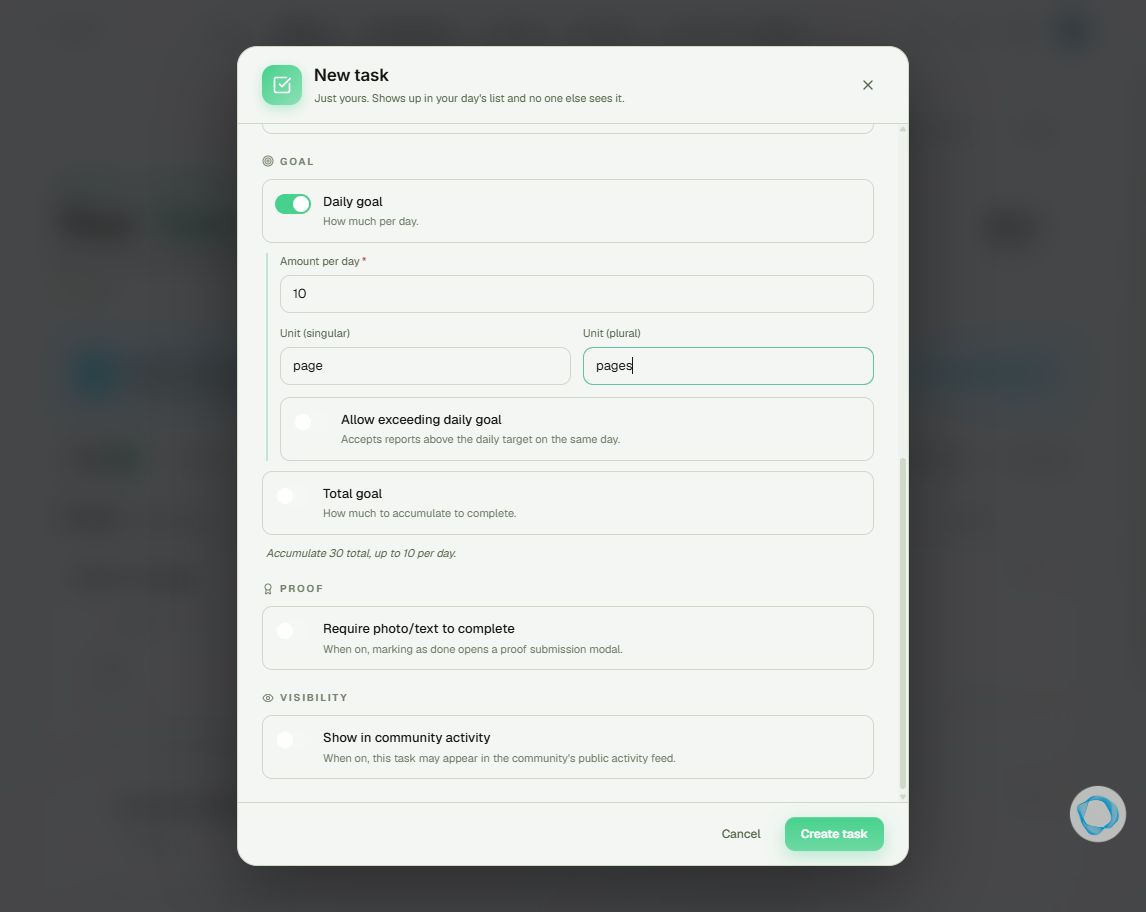
Enable Daily goal, set Amount per day to 10, and enter “page” and “pages” in the unit fields. The unit is a label: entering “lesson” does not connect the task to a course. Allow exceeding daily goal accepts reports above the target on the same day. Total goal separately defines how much to accumulate to complete the task; review it before saving.
4Review proof and visibility, then save
Check Require photo/text to complete and Show in community activity. The second option changes who can see completions. After reviewing your choices, click Create task. Check that the title appears in your list with the intended frequency. Use This week to review the days.
Tip
Before sharing completions, read Who can see my tasks and proof of completion. Sharing activity is a separate choice from creating a personal task.
Frequently asked questions
Does every task need a daily goal?
No. The form lets you configure the daily goal separately. Choose the settings that represent the activity, keeping the daily amount separate from the total goal.
Can I use this to complete a lesson automatically?
Not by naming the unit. “Lesson” in the unit field is only text. Automatic tracking requires a task type linked to specific content, which is outside this personal-task procedure.